


Welcome to the Apilo Help Center.
TikTok Shop – listing offers
Contents
Introduction:
Before you start listing offers/products on Tik using Apilo:
- Create an account on TikTok Shop and configure it according to the platform’s guidelines.
- Add your TikTok Shop account to Apilo according to the TikTok Shop connection guide.
- Add at least 1 product to the Goods and Services bookmark (more information can be found in the guide.
Configuration on the TikTok Shop side
Before you can list your first product on TikTok Shop, you must fully configure your seller account. This involves not just basic data, but also completing information required by the EU regulation on general product safety (GPSR).
According to this regulation, you are required to provide detailed information regarding:
- Brands of the products being listed;
- Manufacturer of these products;
- Responsible Person in the EU, who is designated for your products.
TikTok Shop must verify and accept all this data before you can list any offer.
Listing offers
First, you need to synchronize the sales conditions (ownership policies, payment methods, categories, etc.) with Apilo. To do this, go to the tab: Sales > TikTok Shop > Dashboard > Configuration (in the upper right corner) > Sales Conditions > Synchronize (in the upper right corner).
Then go to the Sales tab → TikTok Shop → List.
Select at least one product and click the ‘List’ button – you can list a maximum of 25 offers in one form.
In the offer form, set the sales channel to TikTok Shop. This way, the visible policies will be displayed for completion:

By clicking on the tabs “Description and Photos” and “Attributes” you will expand additional elements for completion.
When listing an offer, remember to check for certificates if they are required in the category of the given product:

After completing all the necessary data, the offer will be submitted to TikTok Shop for verification of the entered information.
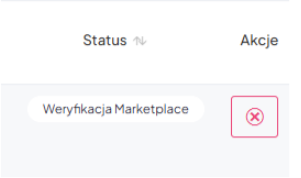
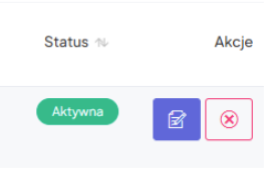
After verification, the status will automatically change to active:
Important!If TikTok Shop rejects the offer due to an error related to photos, first check whether:
- the format is JPG or PNG,
- the maximum file size is up to 5 MB,
- the minimum resolution is 100×100 px, and for the main photo at least 300×300 px,
- there are no additional images in the description with too low resolution,
- too many photos are not uploaded to the gallery.
Categories are downloaded in the language of the shop; if you do not have properly translated categories, you need to resynchronize the data. To do this, go to the tab: Sales > TikTok Shop > Dashboard > Configuration > TikTok Shop Categories.
Managing offers and editing
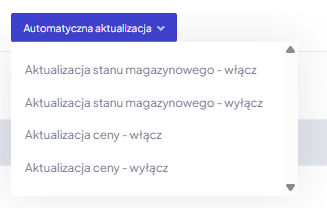
You can enable automatic status updates so that quantities in TikTok Shop change based on the availability of the related product and sales on other platforms:
Remember that frequent price changes may negatively impact the visibility of your products on the platform. To maximize sales and achieve the best results, we recommend setting competitive prices from the very beginning and keeping them stable over time.
At any time, you can edit active offers on the TikTok Shop platform. Remember to make any changes to offers directly from the Apilo level. To edit an offer:
- go to the Sales > TikTok Shop > Active tab;
- choose from the list of offers you want to edit;
- in the top right corner click: Edit;
- make changes through the auction form and click “Save”;
- the offer will be sent for verification by the TikTok Shop platform.
This guide has been translated using AI-powered tools.
Still need help?
Talk to a support agent
