


Welcome to the Apilo Help Center.
Price Lists Module – individual prices on sales channels
Contents
Preparation for working with price lists
1. Import products into the Apilo internal warehouse. Check the guide Import products – how to create a product database in Apilo.
2. Import auctions / offers from sales channels into Apilo and connect them to the inventory items created earlier. Check the guide Product relations – what are they for and how to use them. After correct configuration, new prices calculated by the module will appear next to the basic prices in the inventory item cards (Goods and services > Products > Product). New prices can be uploaded to the connected auctions/offers.
Configuration process
1. Adding a new price list.
2. Price list configuration:
3. Assigning the price list to a sales channel.
4. Enabling price updates.
Also check an example of using the pricing module and how it works.
Add a new price list
We recommend:
- add as many price lists as there are sales channels,
- name the price lists consistently with the names of the sales channels.
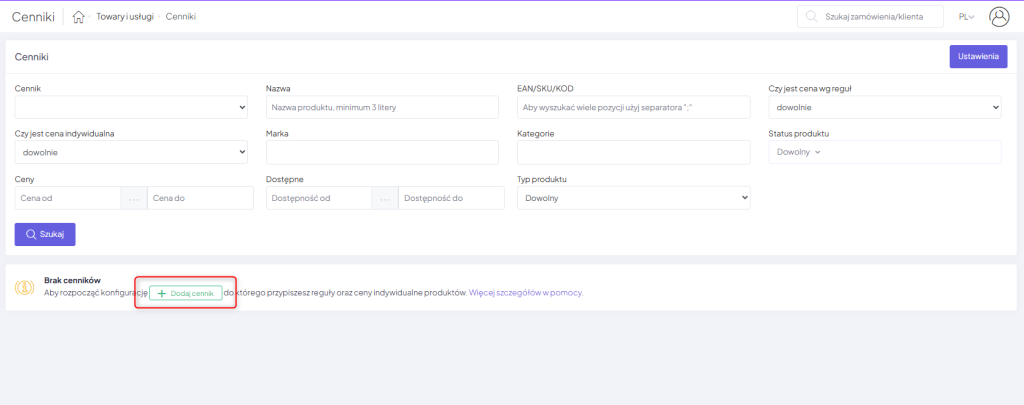
1. Go to the tab Goods and services -> Price lists – Add price list
2. Name your price list – complete information on what should be the base price, in which currency it should be and whether to add the base price.
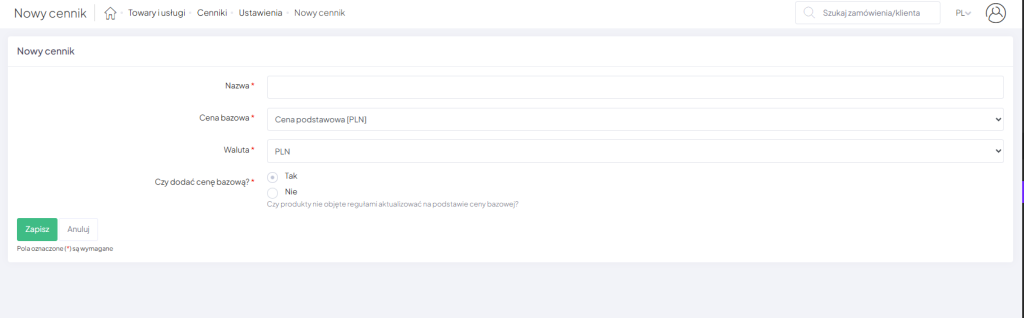
3. Fill in the form:
- Name – identifying name of the pricing list, e.g. Cennik_Allegro, Cennik_Allegro_Konto2, Cennik_Shoper, Cennik_Shoper_sklep2 etc.
- Base price – the price that will be modified, e.g. adding/subtracting a markup. Products created based on imports from sales channels default to having only the base price. If your inventory was created e.g. based on an XML file, you may also have the purchase price in the product card. Check in Goods and services -> Products -> Product Card, what prices your inventory items have and select which one the created pricing list will be based on.
- Currency –to which currency the amounts of products from the inventory should be converted. This option applies if the products in the inventory have prices in PLN, and the module is to convert them into EUR currency for updates e.g. on eBay Germany.
- Should the base price be added:
- thanks to this option, if the product does not have a new price calculated by the pricing module, the base price from the product card (basic/purchase) will still be synchronized with the sales channels,
- when the Apilo option is disabled, it will load the price into the sales channels only when it is set by the pricing module.
Product card and base price:

Individual Price (set manually)
The individual price is a price set without the use of automated rules described in the further part of the guide. The individual price overrides the price created according to the rule. To set an individual price:
1. Go to Goods and Services -> Price Lists.
2. In the “Price List” filter, select the previously created price list or add a new one (see the paragraph above How to add a new price list). Using the remaining filters, find the products whose price you want to edit.

3. In the Individually column, manually set the prices of selected products. You can add a margin to the base price, mark up, or enter a fixed amount for the product. The price set here will be visible on the product card as an additional price threshold next to the base price.
4. The set price will be loaded into the product card.

There is a possibility of mass changing individual prices for a product list for a given price list in two ways:
- Manually:
- Go to the Goods and Services > Price Lists tab;
- Select the products you want to modify;
- Using the mass action, assign a markup/margin to the selected products.

- Click the button: “Update”.
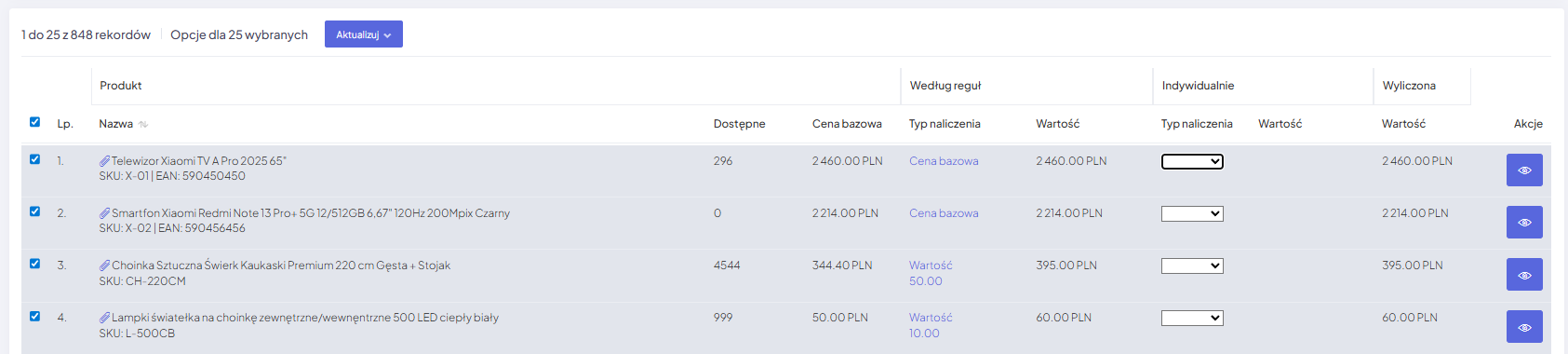
NOTE! Changes made manually overwrite values calculated by rules.
- Using a CSV file:
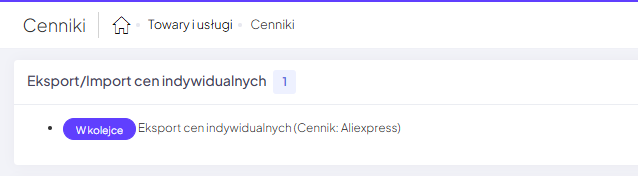
- Download the file from Apilo by clicking “Export individual prices” in the tab: Goods and Services > Price Lists:

- In the same tab, a confirmation message regarding the export order will appear:

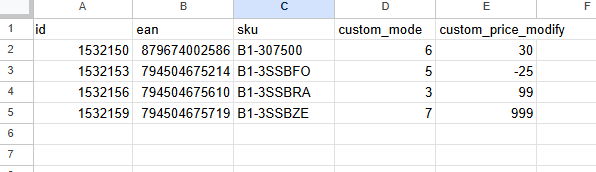
- After downloading the file, modify the calculation method and value:

where:
– id – product id;
– ean – product ean;
– sku – product sku;
– custom_mode – type of calculation:
a) 5 – markup;
b) 6 – margin;
c) 3 – amount;
d) 7 – value;
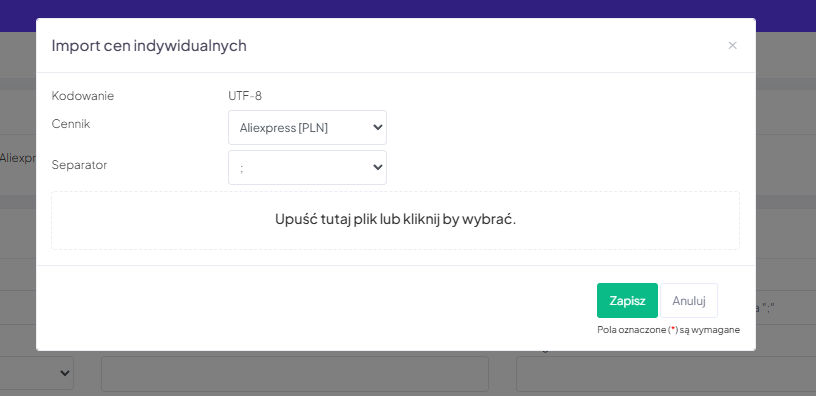
– custom_price_modify – value. - Upload the CSV file to Apilo by clicking “Import individual prices”:


- After saving, refresh the page to see the changes made using the CSV file.


Price rules – automation
Use the advanced automatic calculation and setting module for prices (for selected by rules) products. To do this:
1.Go to Goods and Services->Price Lists.
2. Select the button in the upper right cornerSettings.
3. Make sure you have added at least 1 price list, then adda pricing rule (click 2).

4. Fill in the form:
- Name: any name identifying the pricing rule,
- Active: whether the prices calculated by this rule should appear in the product cards,
- Price Lists: to which price lists this pricing rule should be assigned/applied,
- Priority: if more than one pricing rule covering the same products will be assigned to one price list, set which pricing rule has a higher priority. 1 = rule with the highest priority,
- Calculation type: should the base price be adjusted by adding/removing a markup or a margin, or a fixed amount (value),
- Add Range: this option allows you to set a different conversion value depending on the value of the products,
- Brand / Category: [optional] select category or brand from the Apilo warehouse to which the rule will be applied.
Important: the option only considers categories/brands created in the Apilo warehouse. It does not read the category in which the auction is located on the Allegro platform. To assign stock items to an Apilo category/brand, use the option Goods and Services Product Button Update.
After saving the form, new prices will be calculated after the specified time displayed on the screen:

Did the new price assign to the stock item?
You can check the new prices calculated by the pricing rules:
In the Price Lists tab:
1. Go to Goods and Services Price Lists.
2. Use the filters:
- price list
- it’s worth choosing the filter Is there a price according to the rule: Yes
3. Check the column According to Rule, if it is filled, the prices have been calculated correctly.
Note: if the Individual column has a set price, the price according to the rule will be ignored in favor of the individual one.

II In the Product Card:
1. Go to Goods and Services Products.
2. Find the product whose price was modified using the pricing module.
3. In the ‘Prices’ column, an additional entry will appear described by the name of the Price List:
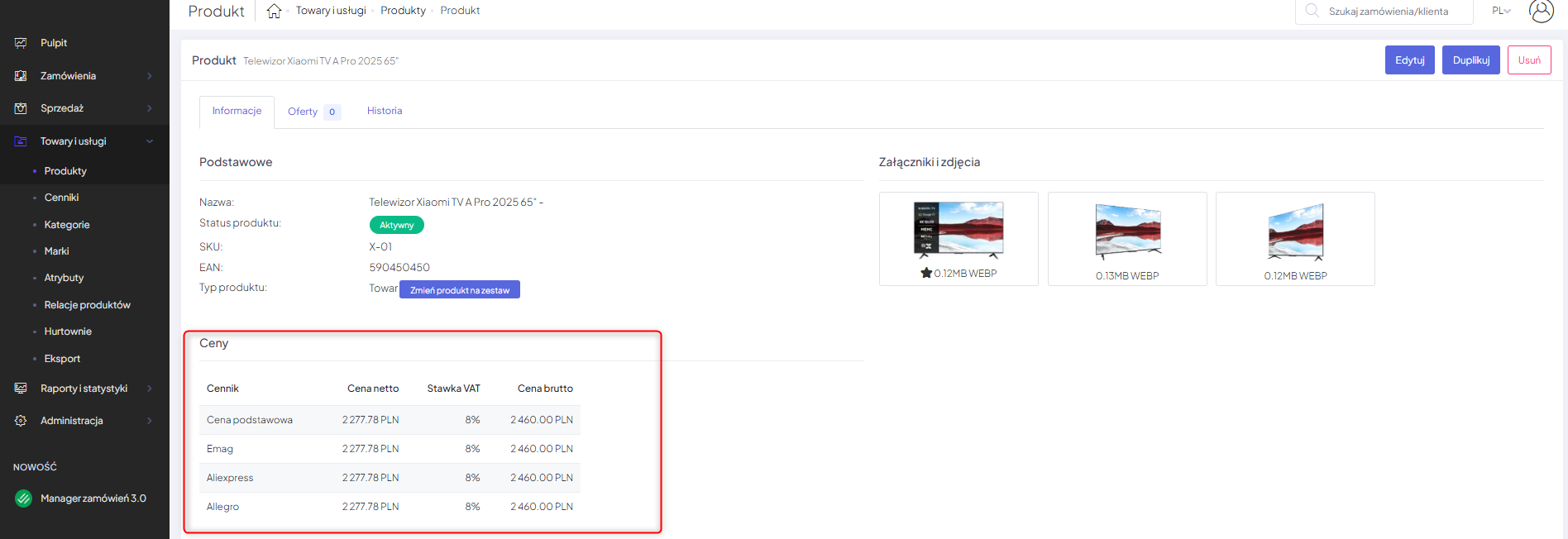
Note: for the price set according to the rule to load into the auction/listing, it is necessary to complete the configuration according to the further part of the guide – assigning the price list to the sales channel and enabling price updates.
Assigning the price list to the sales channel
To update offers/auctions on sales channels with new, individually calculated prices or through price rules, assign the newly created price list to the selected sales channels.
1. Go to Goods and services -> Price lists -> Settings -> Configure.
2. In the form, find your sales channel and assign a price list to it. Sales channels can have different or the same price lists.

Enable price loading for auctions / offers
For Apilo to load fixed prices into auctions/offers, you need to go to the tab levelProduct Relations:
1. Go to Goods and services -> Product Relations.
2. Filter products from the stock or offers/auctions for which you want to enable price loading from Apilo to the offers.
3. Select the chosen items and use the Automatic Update button to enable bulk price loading, or click the Update Price checkbox individually.

Or from the Sales tab:
1. Go to the tab Sales -> Allegro or Shoper -> Active.
2.Select the chosen auctions/offers.
3. Press the Automatic update -> Update Price -> Enable button.
Example of using the price list module:
1. In Goods and services -> Products there is a stock position A with a base price of 100zł.
2. The stock position A is connected to auctions/offers with price updates enabled through the Product Relations tab.
- auction on Allegro from account no. 1,
- auction on Allegro from account no. 2,
- offer from the Shoper store.
3. In the Price Lists Module, 2 price lists are created:
- Price_List_Allegro,
- Price_List_Shoper.
4. Using Price Rules, 2 rules are added:
- Rule_Allegro – increases margin by 10%
- Shoper Rule – increases the margin by 5%
5. Product A with a base price of 100 PLN changes its price on sales channels as follows:
- Allegro auction from account no. 1: 110 PLN
- Allegro auction from account no. 2: 110 PLN
- offer from the Shoper store: 105 PLN
6. In the tabGoods and Services -> ProductsThe base price of product A has been changed from 100 PLN to 200 PLN. Prices are automatically set on sales channels as follows:
- Allegro auction from account no. 1: 220 PLN
- Allegro auction from account no. 2: 220 PLN
- offer from the Shoper store: 110 PLN
This guide has been translated using AI-powered tools.
Still need help?
Talk to a support agent
