


Welcome to the Apilo Help Center.
Modivo – listing products/offers
Contents
Where to begin?
If this is your new Modivo account, on which no sales have been conducted before, we recommend listing a trial offer/product from the Modivo Marketplace admin panel. This way, you can ensure that the account configuration has been completed correctly.
Before you start listing offers/products on Modivo using Apilo:
- Create an account on Modivo and configure it according to the service guidelines
- Add your Modivo account to Apilo in Administration > Sales Channels
- Add at least 1 product to the Goods and Services tab. (More information can be found in the guide: Import products)
Configuration in the Modivo panel
If you have set individual mapping in the Modivo panel, it needs to be removed:
- Log in to the Modivo panel and go to Administration > Configuration
- Click on each row visible in the list and then the button Remove so that the list is empty and no entries appear under ‘Root’

Listing products and offers in the Modivo database:
Go to the Sales tab → Modivo → Listand select at least one product from the list, then press the “List” button. In the form, fill in:
- Shipping time
- Condition
- Category
- Click on the “Features” tab and fill in additional parameters
- The content of the product card will be loaded into the “Description and images” tab from Goods and Services → Products
- Enable automatic updates of state/price so that the product in Modivo is updated based on the inventory position in Goods and Services → Products and sales on other platforms
- The “Bulk Actions” button is particularly useful if we are listing many products in the same category or with the same features. With this button, we will copy the categories/features filled in the first product to the remaining products in the form
- Click “Save”
- Creating a new product takes about 48 hours (this is how long Modivo Marketplace processes product creation). After this time, go to the Sales tab → Modivo → Active to verify whether the product has been listed correctly.

Creating multi-variant listings
To create a multi-variant listing, when listing or editing an offer, specify your own variant group identifier in the “Variant group ID” field.
Modivo defines the Variant Group ID as: “A unique number or name that groups the size variants of a given product model in one color.” Example: A particular model of a blue T-shirt available in three sizes should have the same identifier filled out for each of the sizes.
Creating offers for existing products in the Modivo database:
Go to Apilo and navigate to Sales → Modivo → Find Associations to find the EAN associations between products in the Apilo warehouse and the Modivo database.
- Set the filter “Verification Status: “Not submitted for verification”
- Search for products you want to sell on Modivo
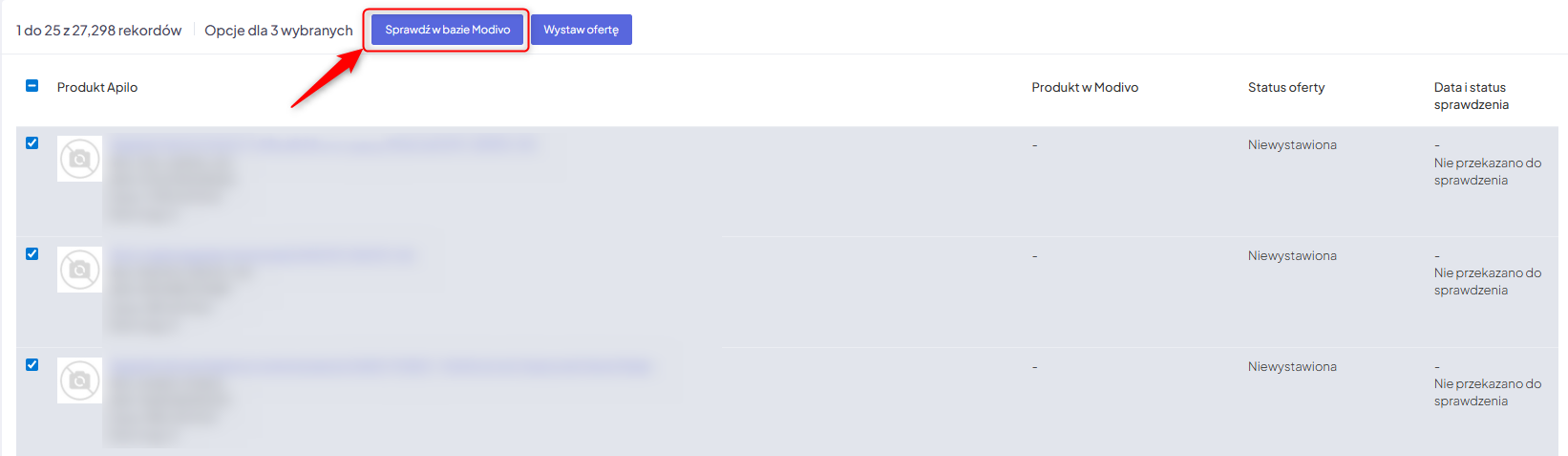
- Select the chosen products and click the button “Check in the Modivo Marketplace database.” The process of finding EAN associations may take from several minutes to a few hours (in special cases longer, when the database is very large).

- When the process of searching for associations is completed, products submitted for verification in the “Search Associations” tab will receive the status “Checked, exists” or “Checked, not found”.
- In the Sales tab → Modivo → Search Associations, set the filter “Check status” to “Checked, exists”.
- Select the products you want to activate
- Press the “Associate” button
- Complete the price, stock status, offer condition, and sales channel, and click the “Save” button
- Within a few minutes, the product will be associated, and your offer will appear on the Modivo Marketplace

Important
From the moment the product/offer is listed in Apilo until the information appears in Modivo, it may take up to 48 hours. This depends on the conditions under which the Modivo API operates.
This guide has been translated using AI-powered tools.
Still need help?
Talk to a support agent
