


Welcome to the Apilo Help Center.
InPost Von Halsky – creating offers
Contents
InPost Von Halsky - video tutorial
Where to start?
- To start using the InPost Von Halsky Sales Channel, register using the dedicated link found in the Apilo panel under the tab: Administration > Integrations and Add-ons > InPost Von Halsky:

- Add the InPost Von Halsky integration to Apilo according to the guidelines.
- Add at least 1 product to the Goods and Services tab. (more information can be found in the guidelines.)
The possibilities of the InPost Von Halsky offer submission form in Apilo:
- submitting up to 25 offers with one form;
- support for productization of InPost Von Halsky – you can connect to an existing product or create a new one;
- calculating individual prices for InPost Von Halsky auctions according to the instructions;
- automatic updates of stock and prices.
Set a parameter set
Parameter sets allow you to define basic information that will be loaded into the InPost Von Halsky auction submission form in Apilo. With parameter sets, you do not need to fill in the same data every time in the auction submission form. Just prepare a set of parameters in advance and choose its name when submitting the auction. You can create multiple sets for different groups of products.
- Go to the Sales > InPost Von Halsky > Dashboard > Configuration tab (in the top right corner).
- Click on the Parameter Sets tile, and then in the top right corner +New parameter set.
In the form, fill in the required fields:

The other fields are not mandatory – you will define them in the auction submission form.
The elements included in the parameter set can be freely edited during the offer submission.
How to create your own offer under existing products in the InPost Von Halsky database?
- Find EAN links between products in the Apilo warehouse and the InPost Von Halsky database in the tab: Sales → InPost Von Halsky → Search Links.
- Set the filter: “Verification status: Not submitted for verification”.
- Search for the products you want to sell on InPost Von Halsky.
- Select the chosen products and click the button: “Check in the InPost Buy database”.


- Once the search for links is completed, the products submitted for verification in the tab: “Search Links” will receive the status: “Verified, exists” or “Verified, not found”.
- In the Sales → InPost Von Halsky → Search Links tab, set the filter: “Verification status” to “Verified, exists”.
- Select the products you want to activate.
- Press the button: “List”.
- Fill in the price, stock level, offer condition, and sales channel, and click the button: “Save”.


To list new (own) products in the InPost Von Halsky database:
- Go to the Sales → InPost Von Halsky → List tab;
- Select at least one product and press the button “List”:

- Choose the sales channel and the dedicated set of parameters for the offer:

- By clicking on the “Description and Images” and “Features” tabs, you will expand additional elements to complete:
- Optionally: enable automatic stock updates so that quantities in InPost Von Halsky change depending on the Goods and Services → Products and Sales tab on other platforms:

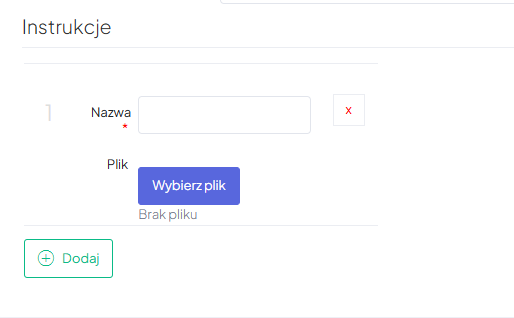
- For each product, you can attach an instruction by uploading a file in PDF format:

- You can also add information about a deposit for the product, including the amount, price, and type:

- You can also set the return policy, complaint rules, and shipping time:

- Click “Save”;
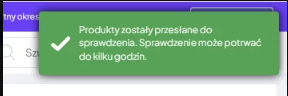
- The offer will be sent to InPost Von Halsky for verification of the entered data:

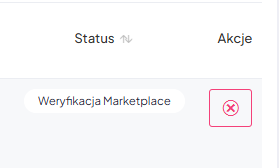
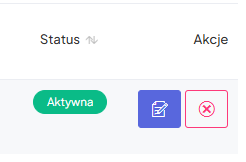
- After verification, the status will automatically change to active:




When listing an offer on the InPost Von Halsky platform, you can also take advantage of product categorization. You can search for the appropriate product in the Inpost Von Halsky database by clicking the button: “Find:” in the auction form.

In the next step, select an item of interest from the list to link the product to the offer:

We recommend choosing a product with the largest amount of supplemented data so that the maximum number of required fields in the offer listing form is automatically filled in correctly.
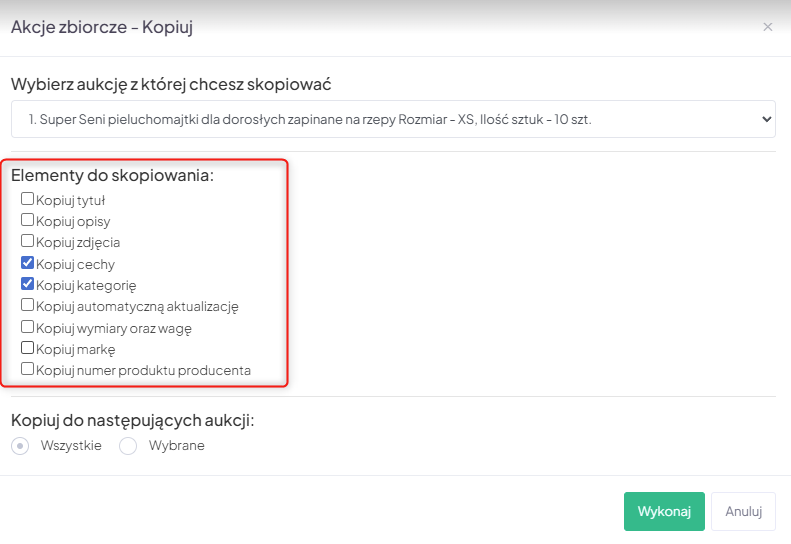
When listing offers, you have the option to utilize bulk actions:

This way, during bulk listing, you can copy individual elements, including features and categories:
How to edit offers?
At any time, you can edit active offers on the InPost Von Halsky platform. Remember to make any changes directly from the Apilo platform. To edit an offer:
- Go to the Sales tab > InPost Von Halsky > Active;
- Select the offer you want to edit from the list;
- In the upper right corner, click: Edit;
- Make changes via the auction form and click “Save”;
- The offer will be sent for verification by the InPost Von Halsky platform.
Most frequently occurring errors:
- “The product description is too short. The minimum length is 100 characters” – correct the product description so that it contains at least 100 characters.
- “Invalid EAN/GTIN length: supported lengths are 8 (EAN-8), 12 (UPC-A), 13 (EAN-13), or 14 (GTIN-14)” – an invalid number of digits was detected in the product identification number. Correct the EAN code to ensure it complies with the supported length.
- “Product must contain at least one image” – offers without images are not accepted.
- “Invalid EAN/GTIN: checksum validation error (Modulo 10)” – the last digit in the EAN/GTIN code is the so-called check digit. It is calculated based on all previous digits according to a specific formula (Modulo 10 algorithm). If you enter even one digit incorrectly, the calculation result will not match the last digit, and the system will display a validation error.
This guide has been translated using AI-powered tools.
Still need help?
Talk to a support agent
