


Welcome to the Apilo Help Center.
Extension ‘Apilo Booster’
Contents
Description of Apilo Booster – list of available modules
Apilo Booster is a partner application iConfig, installed in a computer browser, containing several functionalities useful for a demanding client.
Among the modules available within Apilo Booster are:
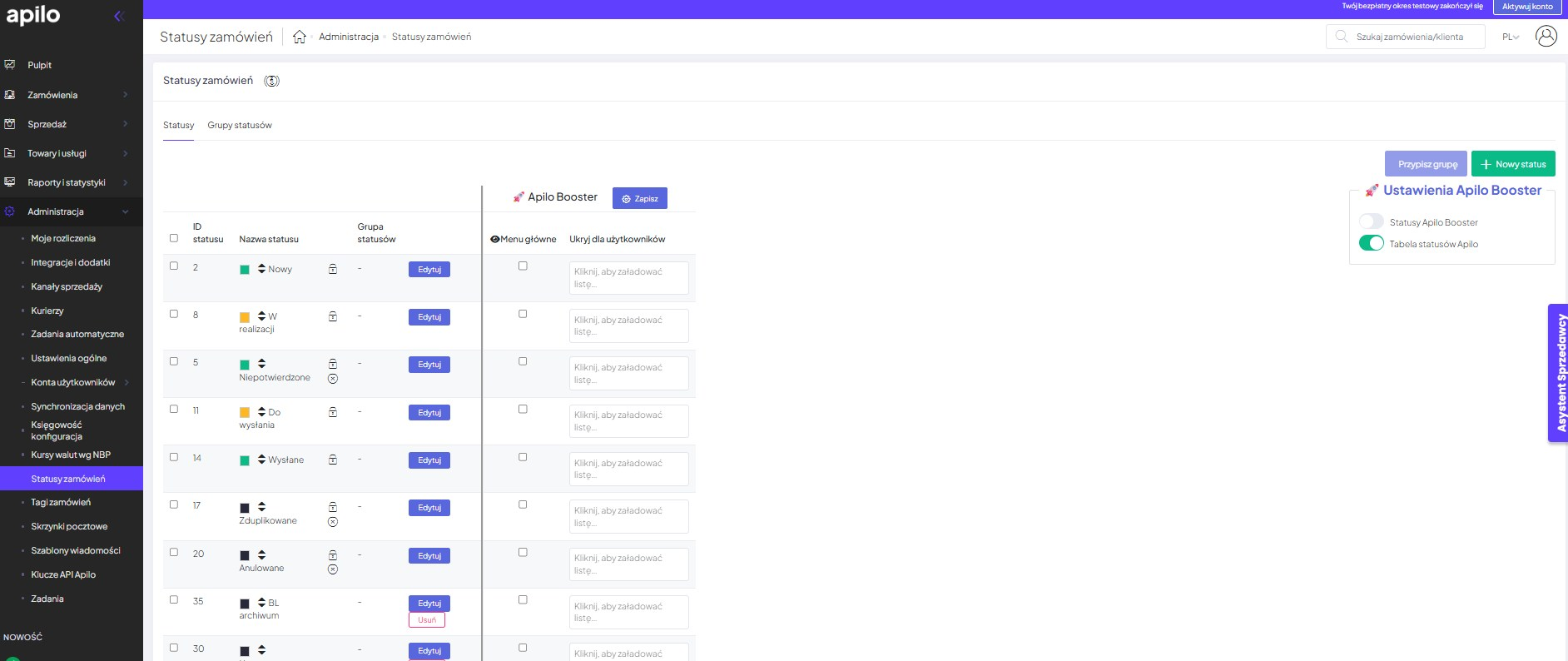
1. Order Tabs – you decide whether to use our status creation and grouping capabilities or the Apilo Booster extension:
Watch the video
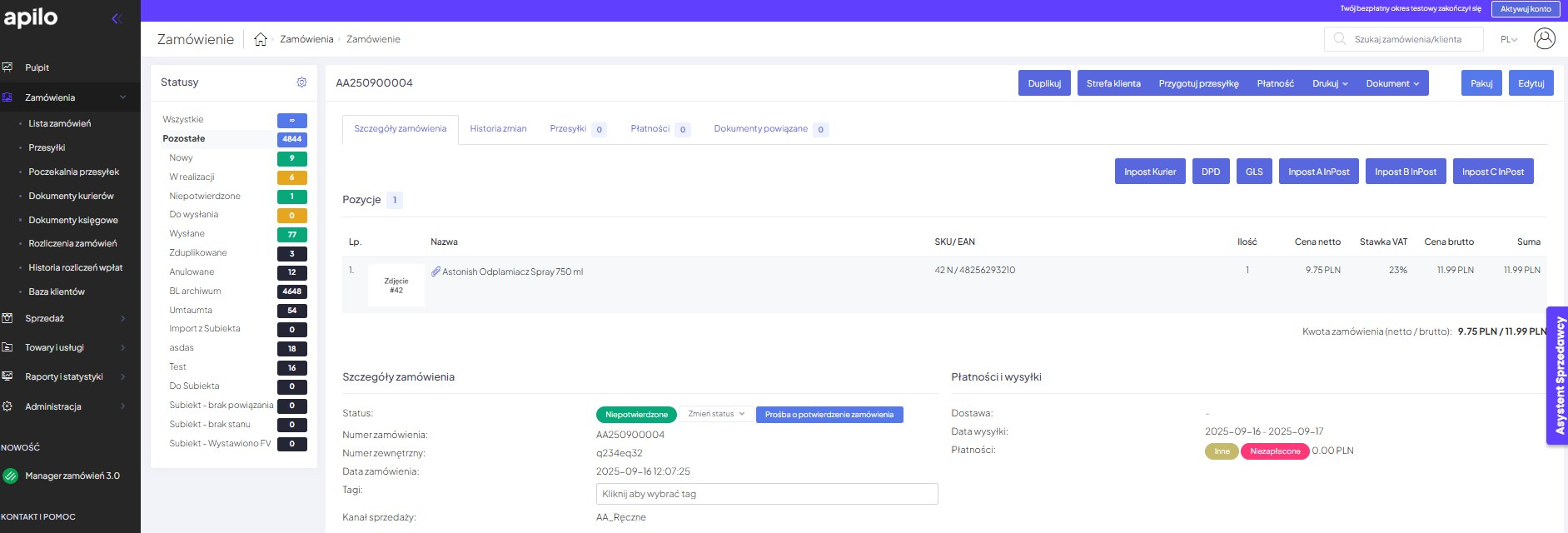
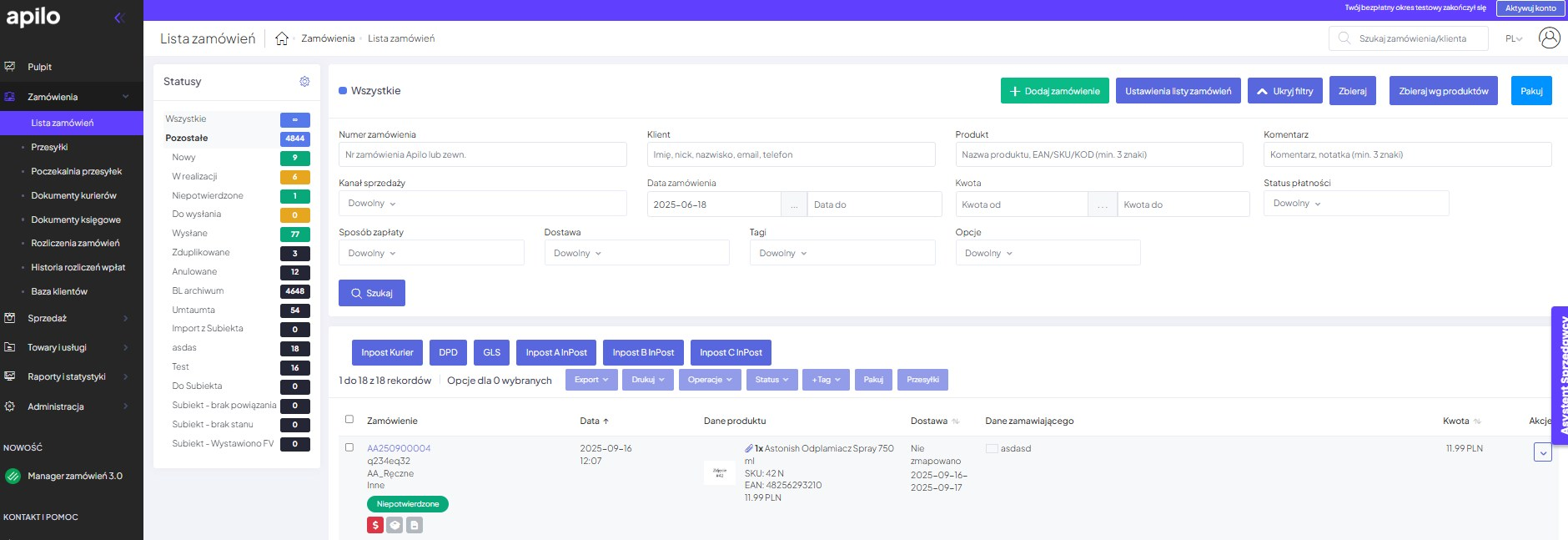
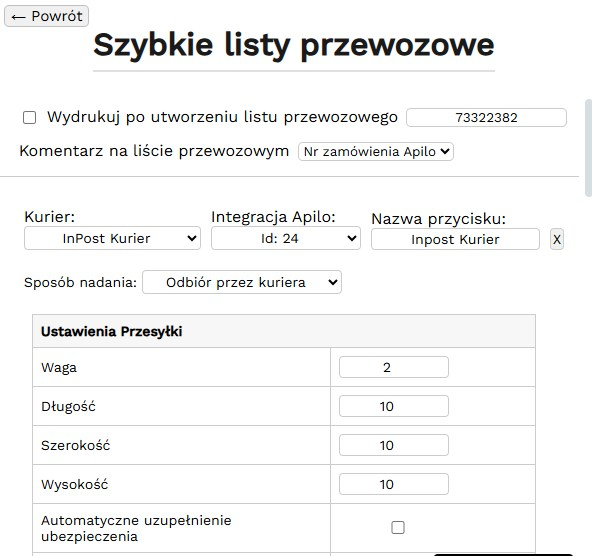
2. Shipping Dimensions Templates – create buttons that will generate a label for the order with pre-defined parameters. Define size, dimensions, weight, contents of the shipment, value of insurance, and more. You will generate the label by clicking the button or using a keyboard shortcut.
Quick lists are available from the orders list, order card, and packing assistant from Iconfig:
3. Practical UX – the module allows for, among other things,:
- displaying buyer comments about notes to orders on the orders list and in the label form,
- navigating between orders using keyboard shortcuts or Next/Previous buttons,
- transferring ordered products and dimensions to the header in the shipment form
- the option to include the product name in the label comment
- automatic printing of labels at the chosen workstation
- displaying information about Cancelled order in the order card and label form
4. Packing Assistant – use the barcode reader to verify products during collection/packing and labeling in Apilo. The add-in signifies correctly scanned products in Apilo and communicates if the scanned code is not on the list of purchased items. Among the options for the Packing Assistant are:
- scanning products from the order card. After scanning all items, the order is moved to the selected status,
- scanning products from the label generation form. After scanning all items, a label is generated,
- the ‘Orders to queue’ button on the orders list. Selecting orders from the list and using the button allows for scanning products order by order.
- audio signaling whether the scanned product was correct or incorrect.

Installing ‘Apilo Booster’
Install the extension in your browser using the links:
- Chrome Web Store (for Chrome or Opera)
- Firefox Add-ons (for Mozilla Firefox)
- Click the extensions icon visible in the upper right corner of the browser window. Then click the paperclip icon and the extension icon.
- After clicking the Apilo Booster icon, a configuration panel will appear. Click the name of the module you want to configure.
- Activate the module by moving the slider from OFF to ON.
- Enter the configuration.
Configuration of ‘Bookmarks for Orders’
After installing Apilo Booster go to Administration > Order Statuses. You can choose whether to use Apilo’s status table or statuses from Apilo Booster:
By clicking the extension icon in the browser’s toolbar and then going to ‘Bookmarks for Orders’, you can make changes to the order of statuses, color, or also remove statuses from the list.
To display the number of orders next to the status name, follow these steps:
- Generate API keys in Administration > API Keys Apilo > in the top right corner of the page click +New REST API Application > Assign any name and Save.
- Click on the extension icon, visible in the upper right corner of the browser window.
- Select from the list API Connection > Enter the generated API data.
The order quantities are refreshed every few minutes.
Configuration ‘Package Dimension Templates’
- After installing Apilo Booster click on the extension icon in the browser’s toolbar. Then in the extension window, select Package Dimension Templates.
- Start the module by sliding the toggle from OFF to ON.
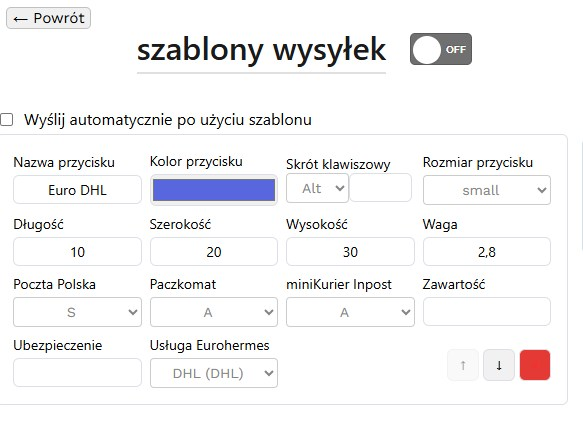
- Add a new template by filling out the fields described below.
Available fields:
- Button name – any name displayed in the shipping form.
- Keyboard shortcut – you can use the template by clicking the button or via a keyboard shortcut, by holding down the left ALT key and the defined key at the same time.
- length/width/height/weight – parameters to load into the shipment.
- PolskaPoczta / Parcel Locker / miniCourier – dimensional marking that will be loaded when using the template for the order with the given delivery method.
- Contents – what value to load if the label form has the ‘Contents’ field available.
- Insurance – what value to load if the label form has the ‘Insurance’ field available.
- Eurohermes broker service – fill in if using integration with Eurohermes and you want to use the template to load the selected service into the shipping form.
Pro Tip:
- filling out all fields is not mandatory,
- Templates are universal and can be used regardless of the carrier. If in the order it’s e.g. parcel locker, and the template has the field ‘parcel locker’ and ‘PocztaPolska’ filled in, the addon will correctly use the dimensions from the ‘parcel locker’ field.
Configuration ‘Practical UX’
- After installing Apilo Booster, click on the extension icon in the browser toolbar. Then, in the extension window, choose ‘Practical UX’.
- Activate the module by sliding the switch from OFF to ON.
- Enable the functionalities of interest described below.
Order list:
- Comment on order – displays the buyer’s comment and an internal note on the order list.Removes the need to click on the icon with the comment.
- The ‘Ship Sequentially’ button– displays the ‘Ship Sequentially’ button on the order list. Using the button allows you to generate shipping labels one after the other. To proceed to the next orders, use the button, keyboard shortcut, or scan the barcode. It removes the need to return to the order list.
Label form:
- Ordered products, Dimensions, ‘Send’ button for header – modifies the label form so that important information is displayed in the upper part.
- Product name to comment field – uploads the product name to the label comment.
- Product SKUs to comment – uploads the product SKUs to the label comment.
- Print after label generation – automatically prints the label at the selected station (indicated label printer).
Other
- Cancelled order – displays a clear message in the label generation form informing that the order for which we are generating a label has been canceled by the buyer.
Configuration ‘Packing Assistant’
- Click on the extension icon visible in the top right corner of the browser window > Then in the extension window, click on the list on Packing Assistant.
- Start the module by sliding the switch from OFF to ON.
- Turn on the functionalities that interest you described below:
Available functionalities:
- Assistant in the order details card– allows scanning of products from the order details card. After scanning all items, the order is transferred to the selected status.
- Assistant in the label form– allows scanning of products from the label generation form. After scanning all items, a label is generated.
- Order queue– adds the button “Add Orders to Queue” on the orders list. Selecting orders from the list and using the button enables scanning of products order by order.
- Sound effects– audible signal indicating whether a valid or invalid product has been scanned.
After configuration, open the order or shipping form in Apilo and scan the product barcodes. The add-on will check and mark the correctly scanned items.
Pro Tip:
If you are using an Android device (e.g., data collector), install the browser KiwiBrowser (click!), which allows you to install Apilo Booster on Android.
Individual solutions
iConfig has also prepared many individual solutions. If you need a customized element, ask here.
Example implementations:
- individual order prints – saved in pdf and printed directly on the Zebra,
- button for printing labels from the orders list along with the information about products to be packed
- buttons located in selected places in the system, which trigger specific actions, e.g., changing the status of the order,
- scanning barcodes in different places in the system, which triggers selected actions,
- Printout of the return label for the order along with the order barcode (included with the order)
- Module for saving buyer data and displaying alerts for the order if they make a repeat purchase
This guide has been translated using AI-powered tools.
Still need help?
Talk to a support agent
