


Welcome to the Apilo Help Center.
Decathlon – listing offers
Contents
Where to start?
If this is your new Decathlon account, on which sales have not previously been conducted, we recommend listing a sample offer/product from the Decathlon Marketplace admin panel. This way, you will ensure that the account configuration has been completed correctly. It will help avoid unexpected errors when connecting offers from the Apilo level.
Before you start listing offers/products on Decathlon using Apilo:
- Create an account on Mirakl Decathlon and configure it according to the service guidelines.
- Add your Decathlon account to Apilo according to the guideConnection with Decathlon.
- Add at least 1 product to the bookmark Goods and services. (more information can be found in the guide: Import products).
Configuration in the Mirakl Decathlon panel
Products can be added by Apilo to Decathlon if the current mapping in the Mirakl panel has been removed. To do this:
1. Log in to Decathlon Mirakl.
2. Go to the Administration > Mapping configuration tab.
3. Remove mapping from all rows. Click on the row and then on the option in the bottom right corner Remove mapping. 4. All rows should have the information :
To create your own offer for existing products in the database:
Find the EAN connections between products in the Apilo warehouse and the Decathlon database in the Sales tab → Decathlon → Search Connections:
- Set the filter “Check Status: Not checked.”
- Search for products that you want to sell on Decathlon.
- Select the chosen products and click the “Check in Decathlon Marketplace database” button. The process of searching for EAN connections may take from several minutes to a few hours (in special cases longer, if the database is very large).
- When the search for connections is completed, the products sent for verification in the “Search Connections” tab will receive the status “Checked, exists” or “Checked, not found”.
- In the Sales tab → Decathlon → Search Connections set the filter “Check status” to “Checked, exists”.
- Select the products you want to activate.
- Press the “Connect” button.
- Fill in the price, stock status, offer condition, and sales channel, and click the “Save” button.

WARNING! From the moment the product/offer is listed in Apilo until the information appears in Decathlon, it may take up to 48 hours. This depends on the conditions under which the Decathlon API operates.
To list new (own) products in the Decathlon database:
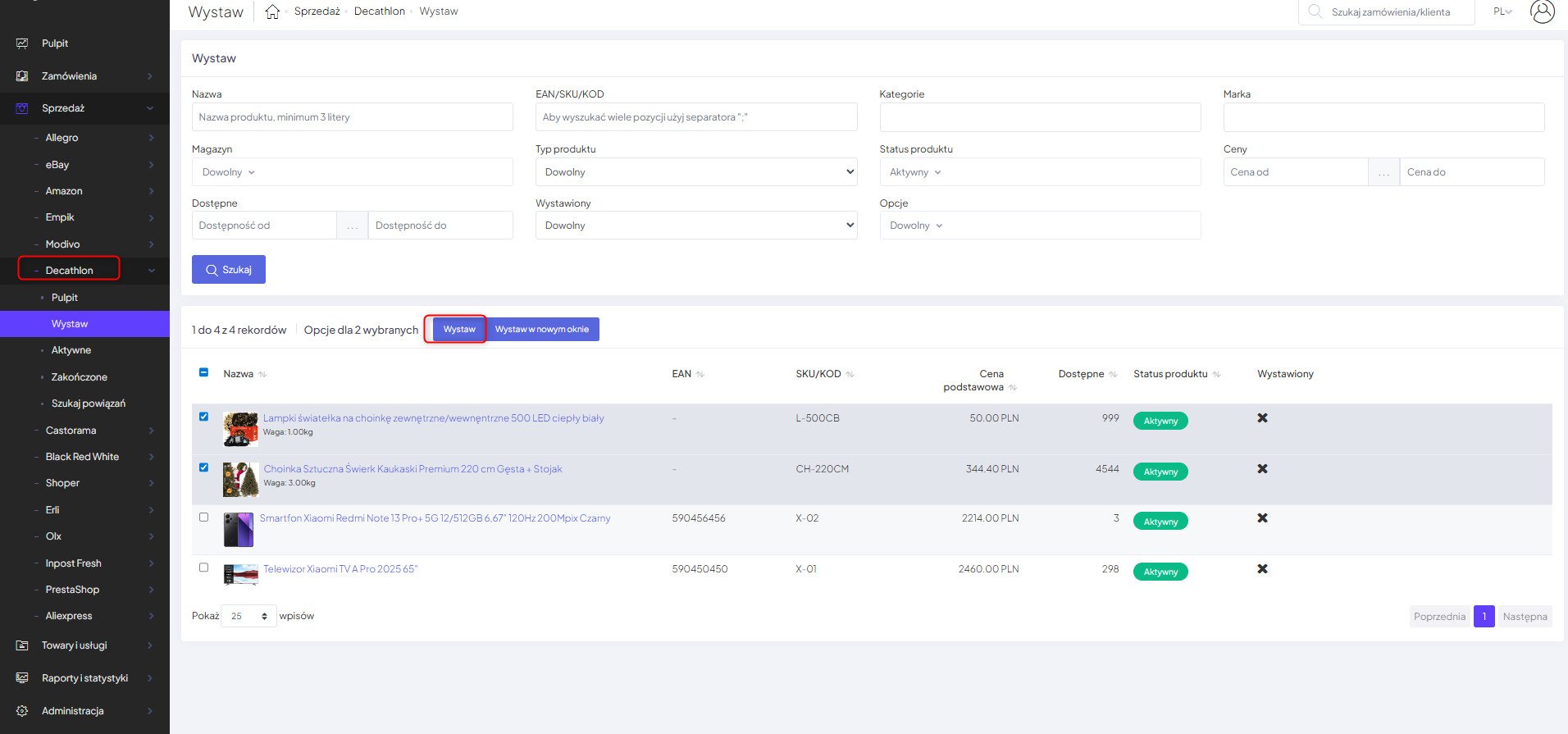
- Go to the Sales tab → Decathlon → List.
- Select at least one product and press the “List” button.
- Scroll down the form page and complete the section “Settings and policies”:
- sales account;
- product type;
- category.
- By clicking on the “Description and images” and “Features” tabs, you will expand additional elements to complete:
- Description – loaded from the product card Goods and services → Products;
- Features.
- Optional: enable automatic status updates so that quantities in Decathlon change based on the Goods and Services tab → Products and sales on other platforms.
- Click “Save”.
IMPORTANT! Due to the desire to ensure the appropriate quality of product card presentations in Decathlon Marketplace, all new products are verified manually. This process may take from a few to several days.
Important
1) In the Decathlon API, some categories are marked as Inactive. When listing products/offers, make sure to select only those categories that do not have a note as shown in the screenshot below:

2) For the import to Decathlon via API to work correctly, there should be no custom Product Mapping configuration saved in the Mirakl panel. Make sure the mapping is set on your account. If mapping is set, it should be deleted.
This guide has been translated using AI-powered tools.
Still need help?
Talk to a support agent
