


Welcome to the Apilo Help Center.
Connection with Thulium
Secure login – two-step verification for the user
List of inventory – accounting programs that you can connect to Apilo
Apilo Warehouse – based on online accounting programs (wFirma, Fakturownia, Favato, FakturaXL)
Billing / Receipt Module Configuration
Apilo Warehouse – based on an external inventory and accounting program of the ERP type
Connection with KSeF
Connection with wFirma.pl – invoices and receipts
Connection to FakturaXL – invoices
Connection with Fakturownia.pl – invoices and receipts
Connection with inFakt
Connection with Shoper Invoice and Warehouse
Connection with iFirma.pl
Connection with Subiekt GT/Nexo/Nexo Pro – integratory.pl connector
Receipts – connecting a fiscal printer
List of inventory – accounting programs that you can connect to Apilo
Apilo Warehouse – based on online accounting programs (wFirma, Fakturownia, Favato, FakturaXL)
How to create a shared product database in Apilo?
Apilo Warehouse – based on the sales platform
Product Relationships – how to enable synchronization?
CSV file – product import, how to create inventory
Apilo Warehouse – based on an external inventory and accounting program of the ERP type
Adding products to the inventory manually
CSV file – inventory update based on the file
Removing products and offers from Apilo
Connecting a warehouse
Price Lists Module – individual prices on sales channels
Shoper > Apilo > Sales platforms. Supply the Apilo inventory with quantities/prices from Shoper.
Product set – what it is used for and how to create it
Apilo inventory – how to add a product
Where to manage the warehouse – in Apilo or Shoper?
AI Descriptions – automatic description generation in Apilo
AI descriptions – how to update descriptions in Shoper
Label generation – configuration
How to generate a label for the order
Ship from Allegro, Allegro Smart, Allegro One
#NEW How to generate a label for an order
Connection with the courier Rohlig Suus
Is label printing possible for every carrier?
Connection with the Meest Post broker
What is the purpose of the external courier?
Labels – Connecting the label printer and printing labels directly to the printer (PrintNode)
Collection Assistant
Packing Assistant
Billing / Receipt Module Configuration
Label generation – configuration
Autoresponder messages from Allegro buyers
Sales Manager – resuming, relisting, and closing offers
AI Descriptions – automatic description generation in Apilo
AI descriptions – usage examples in Apilo
AI descriptions – how to update descriptions in Shoper
Secure login – two-step verification for the user
List of inventory – accounting programs that you can connect to Apilo
How to add a new user with their own password and permissions
How to create a shared product database in Apilo?
FAQ – Frequently Asked Questions
I have Apilo – where should I start?
How often does Apilo sync data?
Allegro – payment and commission refunds
Is label printing possible for every carrier?
Apilo Subscription – everything you need to know about fee calculations
How to activate the discount code?
Are my data secure?
Connection with the Allegro account
Shoper – how to add products from Apilo to the store
Shoper – Allegro InPost SMART – how to send orders downloaded from Apilo
Migration of Allegro auction links with products from Shoper
Allegro Manager – Search Links
Autoresponder messages from Allegro buyers
Allegro – additional configuration
Shoper > Apilo > Sales platforms. Supply the Apilo inventory with quantities/prices from Shoper.
Where to manage the warehouse – in Apilo or Shoper?
Synchronization of quantities/prices on Allegro and Shoper using the Apilo inventory
AI descriptions – how to update descriptions in Shoper
Export orders from Apilo to Shoper
Connection with Shoper
Connection with the Allegro account
Connection with Erli.pl
Connection to the eBay account
Connection to the Amazon account
Connection with OLX
Connection to Empik
Connection with Castorama
Connection to Decathlon
Connection with Black Red White
Connection with Media Expert
Connection with Aliexpress
Connection with TikTok Shop
List of inventory – accounting programs that you can connect to Apilo
Connection to Hebe
Connection to Morele Marketplace
Connection to Ceneo.pl
Connection to Kaufland DE / PL / CZ / SK / AT / FR / IT
Connection to CDiscount
Connection with Shopify
Connection to Shopify – Authorization via Custom APP method
Connection to Etsy.com
Connection with InPost Fresh
Connection with InPost Von Halsky
Connection with IdoSell
Connection with Prestashop
Connection to WooCommerce
Connection with ShopGold
Connection to eMag
Connection to RedCart
Apilo Returns
Connection to Gmail
Connection with Labelcall
Connection with Thunderbird
Connection to Magento
Connection with the Inpost courier
Ship from Allegro, Allegro Smart, Allegro One
Connection with DPD courier
Connection with the GLS courier
Connection with UPS courier
Connection with DHL Poland courier
Connection with FedEx Poland
Connection with FedEx International
Connection with courier Poczta Polska
Connection to ShipCenter
Connection to Amazon Easy Ship
Connection with Orlen Paczka
Connection with New Colors
Connection with Eurohermes
Connection to Paxy
Connection with Global24
Connection with the courier Rohlig Suus
Apilo Warehouse – based on an external inventory and accounting program of the ERP type
Connection with the GEODIS (Pekaes) courier
Connection with DPD courier (Germany)
Connection with DHL (Germany)
Connection with the Apaczka broker
Connection with the Furgonetka.pl broker
Connection to the Erli.pl broker
Connection with the broker Olza Logistic
Connection with the Meest Post broker
Connection with the BliskaPaczka broker
List of all couriers and brokers that you will connect to Apilo.
Connection with wFirma.pl – invoices and receipts
Connection to FakturaXL – invoices
Connection with Fakturownia.pl – invoices and receipts
Connection with inFakt
Connection with Shoper Invoice and Warehouse
Connection with iFirma.pl
Connection to Subiekt GT – Sellintegro connector
Connection with Subiekt GT/Nexo/Nexo Pro – integratory.pl connector
Receipts – connecting a fiscal printer
EAN barcodes – Barcode scanner
Labels – Connecting the label printer and printing labels directly to the printer (PrintNode)
Shoper – adding products to the store Sales > Shoper > Listing
Shoper – adding products to the store using a CSV file
Application ‘Integrations with wholesalers’ or ‘Dropshipping module Apilo’ – what to choose?
Shoper applications – specifications and FAQ
Installation and creation of an Apilo account – ‘Apilo Dropshipping module’ and ‘Wholesaler Package’ in the Shoper store
Connecting the wholesaler to Apilo [Shoper Applications ‘Integrations with Wholesalers’ and ‘Apilo Dropshipping Module’]
How to send products from the wholesale to the Shoper store?
Allegro – auction listing and basic configuration
Adding necessary information in offers (GPSR)
Allegro – bulk update and modification of titles/descriptions of auctions
Shoper – how to add products from Apilo to the store
Shoper – adding products to the store Sales > Shoper > Listing
Shoper – add Allegro listings to Shoper as products
Shoper – list Shoper products as auctions on Allegro.
Shoper – adding products to the store using a CSV file
Amazon – listing offers and products
OLX – listing offers
Empik – listing offers
Castorama – listing offers
Decathlon – listing offers
Black Red White – listing offers
Media Expert – listing offers
Modivo – listing products/offers
Erli – listing offers
Aliexpress – listing offers
Temu – creating offers
TikTok Shop – listing offers
Amazon – “Could not create the product”, what to do next?
PrestaShop – export products to the store using a CSV file
InPost Von Halsky – creating offers
InPost Fresh – creating and managing offers
Price Lists Module – individual prices on sales channels
Export offers to a csv/xls file
Sales Manager – resuming, relisting, and closing offers
AI descriptions – usage examples in Apilo
AI descriptions – how to update descriptions in Shoper
How to add a new user with their own password and permissions
Billing / Receipt Module Configuration
Label generation – configuration
Allegro – payment and commission refunds
How to generate a label for the order
Autoresponder messages from Allegro buyers
Emails to clients and message templates
Manual order from another source
Automated tasks
Custom events
Receipts – connecting a fiscal printer
EAN barcodes – Barcode scanner
Labels – Connecting the label printer and printing labels directly to the printer (PrintNode)
Export orders from Apilo to Shoper
Connection with the Allegro account
Allegro – auction listing and basic configuration
Allegro – bulk update and modification of titles/descriptions of auctions
Billing / Receipt Module Configuration
Apilo Warehouse – based on the sales platform
Product Relationships – how to enable synchronization?
Label generation – configuration
Allegro – payment and commission refunds
Ship from Allegro, Allegro Smart, Allegro One
Autoresponder messages from Allegro buyers
Allegro – additional configuration
Contents
Configuration on the Apilo side
Log in to your Apilo account and go to the Administration tab -> Apilo API keys -> Add new API key by clicking in the top right corner on the “New REST API application” button
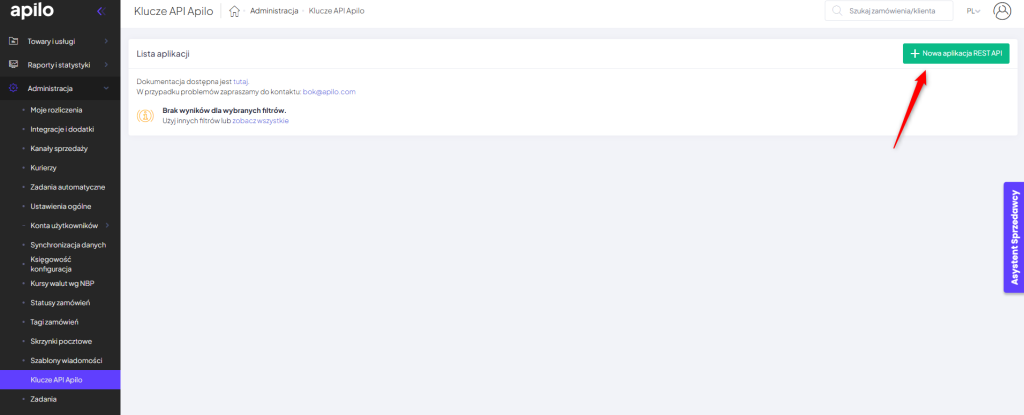
Enter the application name at your discretion, it can be e.g. thulium
Configuration on the Thulium side
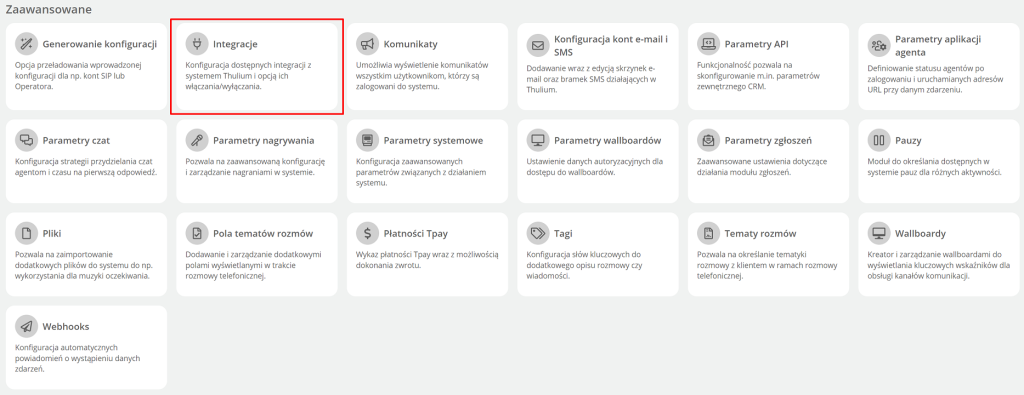
- From the tab Administration select Advanced → Integrations.

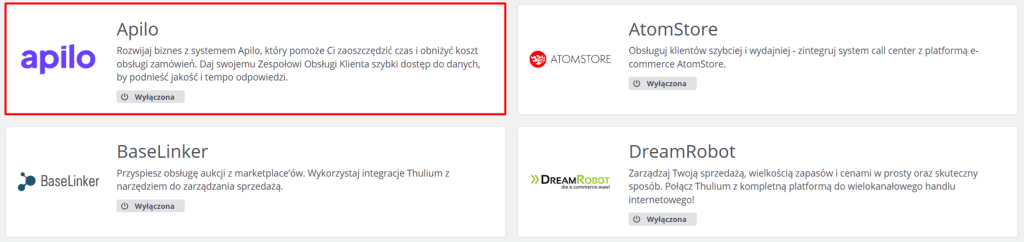
- A window will appear on the screen with available integrations – select Apilo from the section E-commerce.

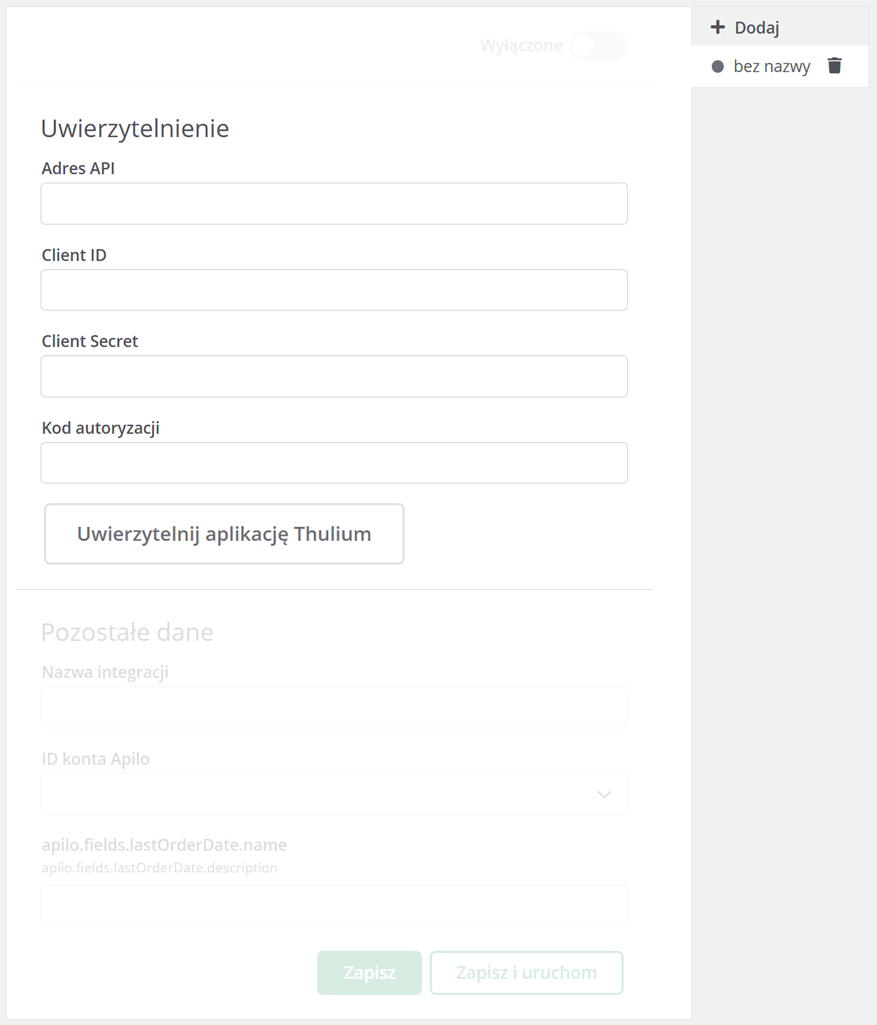
- Next, you need to fill in the appropriate fields:

- After entering the authentication data in the Thulium panel, click “authenticate Thulium application” to authenticate the integration. If authentication is successful, a relevant message will appear on the screen:

- After authenticating the application, you need to complete the remaining data.
- If the remaining data has been entered during the integration configuration in the Thulium panel, this integration can be saved by clicking “save” or saved and launched at the same time by clicking “save and run”.
- In the case of just saving, you then need to launch the Apilo integration:



Thulium Action in Combination with Apilo
You can transfer your clients and integrate them into Thulium according to the guide click! See what the integrated client card looks like: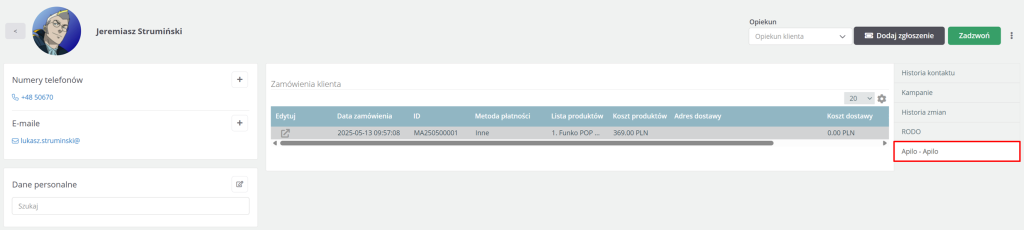
A new Apilo tab appears on the right side, which contains basic information about the client’s orders.
Additionally, orders are available within the Contact History in the ORDERS section: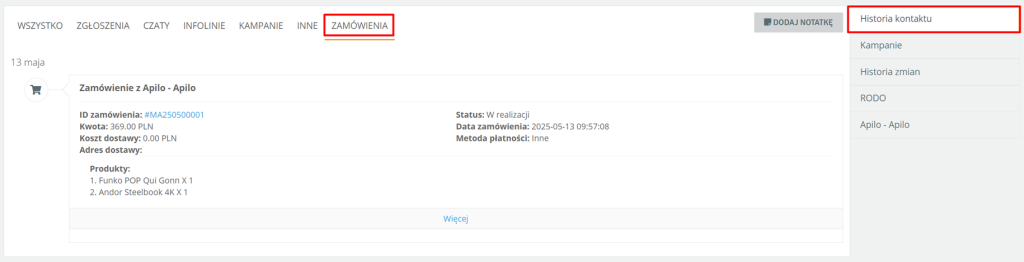
This guide has been translated using AI-powered tools.
Still need help?
Talk to a support agent
