


Welcome to the Apilo Help Center.
Connection with the Allegro account
Connecting your Allegro account in Apilo
Do you have multiple Allegro accounts?
If you have multiple Allegro accounts that you want to connect to Apilo, you must connect each of them in the way described in this guide.
Contents
How to connect your account?
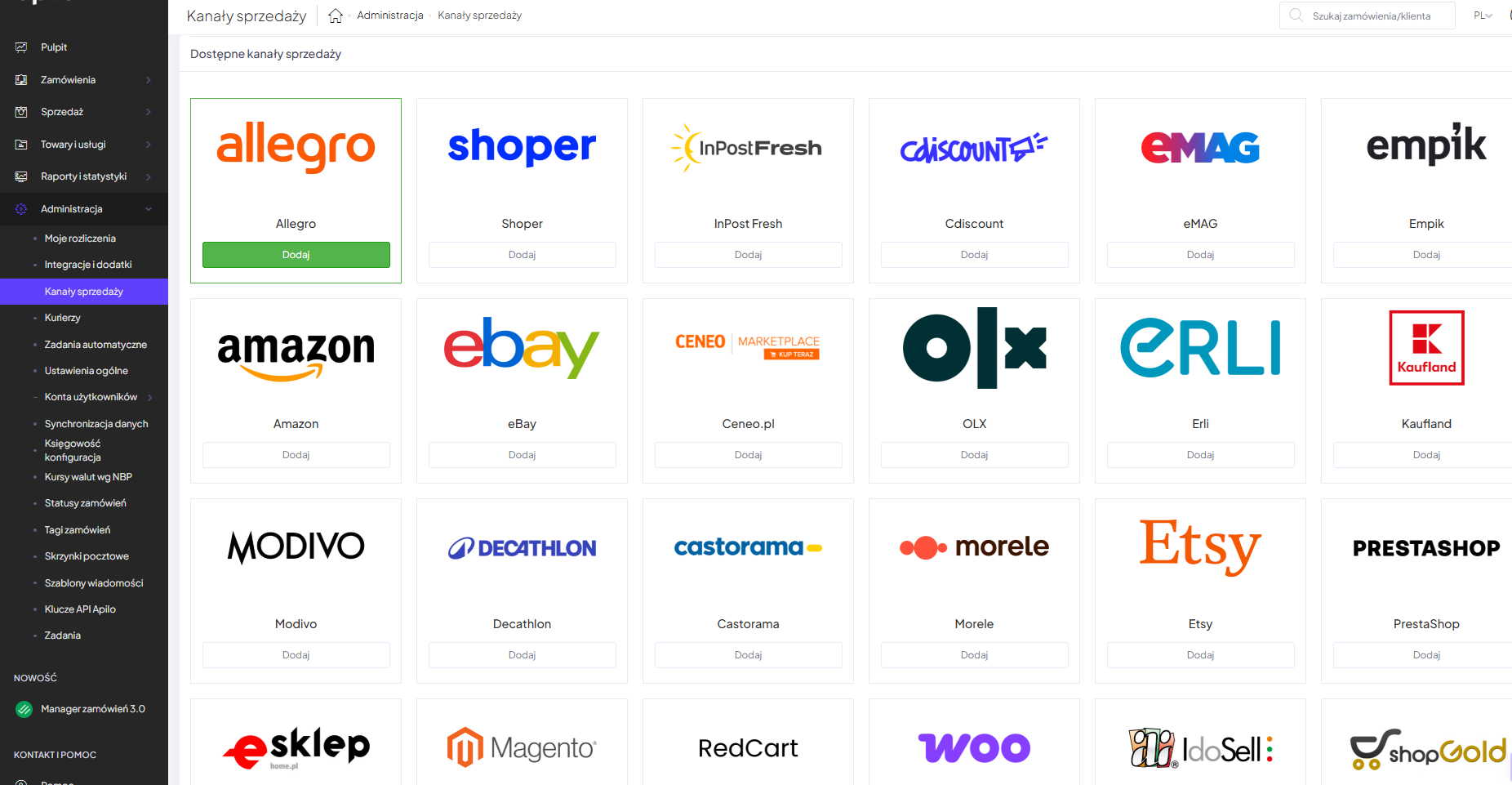
First, log in to Apilo as an administrator and go to the tab Administration -> Sales channels. From the list of available stores, find “Allegro” and click the “Add” button:
Fill out the form:
- name – any name (description) of the account;
- alias – any two-letter identifier for Allegro orders;
- login – login to your Allegro account. You can check your login on the page https://allegro.pl/moje-allegro/moje-konto/dane-konta/;
- Shipping time for the same day – if you declare shipping for the same day for orders placed by a certain time, set it. This way, the system will display the shipping date for today or the next business day;
- Pricing – configure the pricing module and assign a price list with individual prices (e.g., markup, +/- value compared to prices in Goods and services -> Products) to the Allegro account;
- Customer zone – whether to generate a link to the summary order form. The link can be automatically sent to the customer after configuring the notification templates;
- Email address for seller notifications – do you want to receive an email for every order that will be retrieved by Apilo from Allegro;
- Default shipment comment – place one of the variables in this field, e.g., {order.id} – to have the order number generated by Apilo appear on the label;
- Minimum stock level – whether Apilo should end offers when the stock level for the offer is below the provided value;
- Maximum stock level – does Apilo need to reduce the inventory level to the specified value.
Save the form, on the next page click the button Authorization. If you have more Allegro accounts – please log out of them before authorization. If you do not do this, you will see the message:
Error
Login mismatch. Authorized on the Allegro account as “apilo_test”, in Apilo “apilo_test_2” was provided.

and then link Apilo with Allegro.

New email address added to your Allegro account
This is a standard procedure in case the automatic messaging option was enabled in Apilo, without having previously added a personal email to Apilo. Messages to customers are not sent by the system without prior configuration of the automation tasks module.
Additional settings [optional]
You will perform additional connection configuration in Administration -> Sales Channels -> Click on the name of the connected Allegro account.
Among the options, you will find among others:
- Shipping bindings – match Allegro delivery methods with the carriers connected to Apilo and conveniently generate labels in the Apilo panel;
- Status bindings – match Allegro order statuses with Apilo statuses, so that after changing the status in Apilo, the system sends the change to Allegro:
- Example: set in the Method column according to the channel status In process with the status During for Method according to Apilo. This way, when you change the order status to In process in Apilo, the order status in Allegro will be updated within 15 minutes;
- Downloading overdue orders – if you want to download orders from Allegro placed before connecting to Apilo, search for the option Import orders and click the button Import. Select the account from which the orders will be downloaded and set the date from which the orders will be downloaded (maximum 30 days back);
- Shipments to the sales channel – whether to automatically upload the generated shipments to the Allegro sales channel;
- Statuses for the sales channel – whether to automatically send the order status changes in Apilo to Allegro (configuration required status linkages);
- Invoices for the sales channel – whether to load the generated invoices for orders into Allegro orders;
- Invoice corrections for the sales channel – whether to load the generated invoice corrections into Allegro orders.
Check the guide Allegro – additional configuration, to find out more about additional integration opportunities with Allegro.
Important: To integrate Apilo and Allegro, you must have an active account on the Allegro selling platform. There is no option to connect an Allegro account locally in Apilo. Apilo is not intended to create a new account on Allegro. After changing the password on Allegro, you must reauthorize the connection of Apilo with Allegro in the Administration -> Sales Channels -> click on the Allegro account name -> Authorization.
This guide has been translated using AI-powered tools.
Still need help?
Talk to a support agent
