


Welcome to the Apilo Help Center.
Connection with Shoper
Contents
Step I) Application in the Shoper store
In the Shoper store, you already have the Apilo – multichannel sales application installed by default. No additional actions are required on your part. You can find it in the Increase Sales > Multichannel Sales tab.
Step II) Connect Shoper with Apilo using the installed app
- In the Shoper store panel, go to the Sales Increase -> Multi-channel Sales tab
- On the right side of the page, click the blue button Connect to Apilo. If you already have an account and it is connected, you will see the button here Go to Apilo.

- If you do not yet have an account in Apilo, select the tab Join Apilo and fill out the form:

- If you already have an Apilo account, fill out the form in the tab Connect an existing account:


Step III) Go to Apilo
Perform further configuration in the Apilo panel. You can access Apilo in 2 ways:
a) By entering the address of your Apilo account (alias) in the browser, given during account creation, e.g. mojeapilo.apilo.com. You also received this address in an email sent from notification@apilo.com
b) By navigating in the Shoper panel to Sales Increase > Multi-channel Sales > Go to Apilo
Step IV) Complete your configuration in the Apilo panel
In the Apilo panel, go to Administration > Sales Channels > Edit Button for Shoper. The most important options available in the form are:
- source of orders – unchecking ‘Allegro’ prevents duplication of orders if the Allegro integration is added in both Apilo and Shoper.
- Invoice field – after filling in this field, orders will be marked with the invoice in Apilo.
- Field for mapping the delivery point of the order – if you have delivery methods with pickup options in Shoper, choose which field is responsible for storing the pickup point number.
- Information transfer – select Yes if Apilo should upload statuses/tracking numbers to Shoper after the order is fulfilled in the Apilo panel.
- Default shipping comment – in this field, you will configure what comment should be displayed on the shipping label generated by Apilo for the Shoper order. You can use variables – for example, entering {order.idExternal} in this field will display the order number from Shoper on the label.
- Add orders to the store (export) – should all orders retrieved from other sales platforms be uploaded to Shoper? More information in the guide.
- Product retrieval (import) – should Apilo be allowed to retrieve products from the store to Apilo’s internal warehouse?
- Cyclical product and offer import – set Yes for Apilo to cyclically retrieve new products from the store to Apilo’s internal warehouse Goods and Services > Products.
- Price and stock update – select which side the update should apply to. More information in the guide Where to manage the warehouse – in Shoper or Apilo?
- Status updates – status updates for Shoper also occur bidirectionally.
Step V) Set mappings
1. In Apilo, go to Administration > Sales channels > Click on the Shoper name.

2. Among the options, find on the list:
- Shipping connections – if courier integrations have been added in Apilo in Administration > Couriers, match the shipping methods from Shoper to the couriers connected to Apilo and conveniently generate labels in the Apilo panel.
- Payment connections – match the payment methods from Shoper to Apilo payments.
- Status connections – match the order statuses from Shoper to Apilo statuses.
Auto-login from Apilo to Shoper
You can quickly navigate from Apilo to Shoper by going to the Sales tab -> Shoper -> Dashboard. After clicking the “login” button, you will be redirected to the Shoper page.
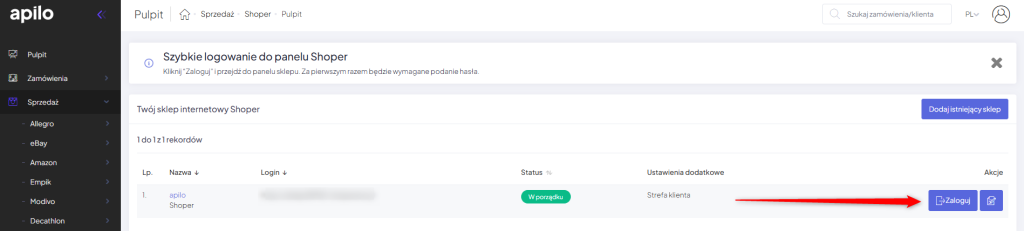
IMPORTANT!! The first time you will need to provide your password.
Available functionalities of the Apilo – Shoper integration are:
- management and execution of orders from Shoper and other platforms in one shared Apilo panel
- convenient management of quantities and prices across all platforms
- synchronization of quantities between platforms thanks to the shared Apilo product warehouse
- publishing products from the selected Shoper store / Allegro account to other sales channels
- publishing products from the selected sales channel to the Shoper store
- publishing products from one Shoper store to another
- sending order statuses from Apilo to Shoper
- batch generation of labels for multiple orders in the Apilo panel thanks to connecting to Apilo couriers
- and much more!
Subscription Settlement
This guide discusses connecting Shoper to Apilo via a standard monthly settlement according to the pricing. If you choose to pay ‘upfront’ instead of standard settlement, you will receive a promotional price. Below are the conditions for switching to a prepaid subscription using the special offer for Shoper users:
- Package of 3 Apilo wholesalers – 99zł / month
- Dropshipping module package Apilo – 649zł / year
This guide has been translated using AI-powered tools.
Artykuły powiązane
Still need help?
Talk to a support agent
