


Welcome to the Apilo Help Center.
Connection with Media Expert
Contents
Configuration in the Media Expert panel:
- Log in to your account in Mirakl Media Expert.
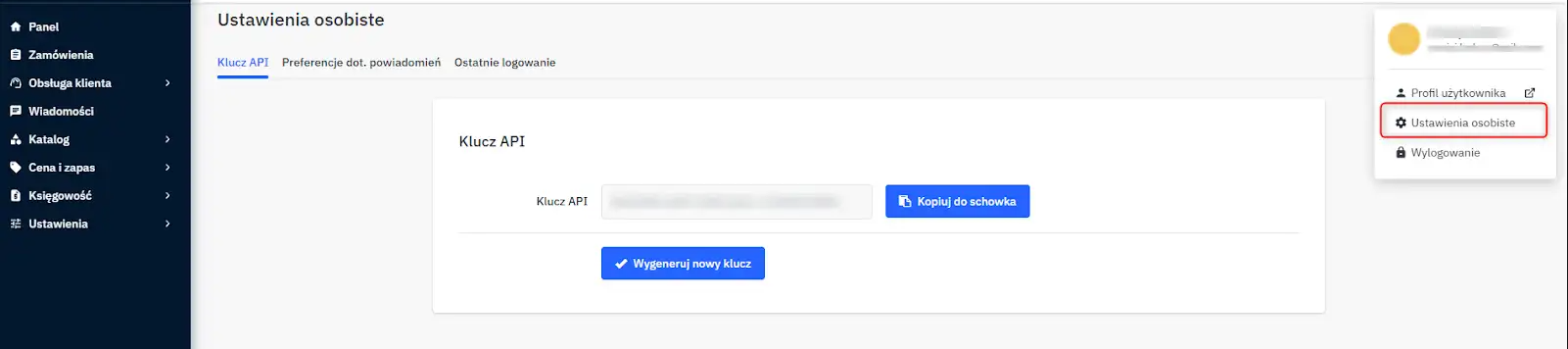
- Click on user login/email located in the upper right part of the page.
- Select Personal settings, then click API Key:

- If:
– The key has already been generated – choose ‘Copy to clipboard’.
– The API key has not been generated – choose ‘Generate new key’ > ‘Copy to clipboard’.
Configuration in the Apilo panel:
- Log in to the Apilo panel.
- Go to Administration → Sales channels.
- Click on the Media Expert tile.
- Fill out the form:
– Name – any name that allows identifying the sales channel;
– Alias– a 2-letter abbreviation from which order numbers from this channel will start;
– Login – user login in the Media Expert panel;
– API Key – copied from the Media Expert panel. Note! Orders are accepted in the Mirakl panel by Apilo automatically;
– Default offer connection identifier – According to the selected identifier, Apilo will update offers on the external platform, e.g., EAN;
– Customer area– Should a link to the current information about the order be generated for the customer? The link can be used in message templates to buyers;
– Pricing– you can assign a specific pricing to the sales channel. A pricing must be created beforehand pricing;
– Default shipment comment – use variables to make it easier to identify shipments;
– Email address for seller notifications – Enter the email address if you wish to receive a message about each order that appears in Apilo. Without providing it, the seller notification option will not be activated;
– Minimum stock level – Your offer will end when the stock level is lower than the specified quantity for the sales channel. If the quantity is higher, the offer will be resumed (with renewal updates enabled for the offer);
– Maximum stock level – enter if you do not want to indicate the actual quantity of goods in the offer (e.g., a few thousand), and only the quantity up to the specified maximum. - Save the form.
WARNING! To mark orders as Shipped / Completed on the Media Expert platform, it is necessary to add the tracking number for the order.
Additional Configuration:To proceed to further configuration of the sales channel, go to the tab: Administration -> Sales Channels -> Media Expert – click on the name of the connected account. Here, in addition to previous settings, you will find:
Automatic Tasks – you can configure as many of them as you want.
Shipping Links – match Media Expert delivery methods to carriers connected to Apilo, so that you can see the mapped shipping method on the orders list. More information on this topic can be found in the guide https://apilo.com/pl/poradniki-video/?video-id=16447.
Product Import and Offer Import – allows for quick addition of products to the Apilo warehouse based on the platform and offers for their management.
Shipments to the Sales Channel – enable this option to send tracking numbers generated in Apilo to orders in the Media Expert channel.
This guide has been translated using AI-powered tools.
Still need help?
Talk to a support agent
