


Welcome to the Apilo Help Center.
Connection with KSeF
Contents
Introduction
Integration of Apilo with KSeF is dedicated exclusively for users using the Apilo invoicing module.
If you are using an external accounting system (e.g., wFirma, Fakturownia, InFakt, FakturaXL, etc.), the process of sending invoices to KSeF occurs directly in external systems.
The Apilo system allows for flexible sales management, so if you manage several companies, you can add integration with KSeF multiple times – separately for each NIP number. Remember, for each active integration with KSeF you must create a separate, unique numbering series.
Configuration on the KSeF side
- Log in to the KSeF Taxpayer Application: https://ap.ksef.mf.gov.pl/web/login:

- Enter the company’s NIP and select the option: “Authenticate”:

- Choose how to sign the document. You can use a trusted profile, qualified certificate, or e-ID. Then go through the document signing process:

- Generate certificate key – enter the certificate name and define a password:

- Download the key and attach the application for the issuance of the certificate:

When downloading the first certificate – choose: “Authentication in the KSeF system.”
If you want to generate the certificate offline – choose: “Sign the verification link of the issuer.” - Download the finished certificate:


Attention! During the process, there will be downloaded two files:
– one with the extension .cert – this is the actual certificate file;
– the other with the extension .key – key file.
Rules for generating and managing KSeF certificates
-
KSeF certificates for individual applications must be generated separately. For technical reasons, it is not possible to create a single, universal certificate combining both functions.
-
Since KSeF certificates inherit the user’s rights in the system, the process of generating keys and certificates should be conducted only by the administrator or the owner. To ensure proper issuance and transmission of documents, the certificate must have full rights.
-
We would like to point out that certificates generated directly by the Tax Office may have restricted access rights by default. In such situations, the extension of rights is the user’s responsibility and requires direct contact with the relevant office.
-
For issuing invoices in offline mode, having a certificate is mandatory type II. Documents generated this way will automatically be marked by the system with the annotation: “Issued in offline mode”.


IMPORTANT! Remember to add KSEF in each series of numbering that you have in Apilo (Administration > Accounting configuration > Edit the given series of numbering > External integration.
More information on creating a certificate can be found on the website of the Ministry of Finance:
https://ksef.podatki.gov.pl/modul-certyfikatow-i-uprawnien-mcu/
https://ksef.podatki.gov.pl/informacje-ogolne-ksef-20/certyfikaty-ksef/
Configuration in Apilo
- Go to the tab Administration -> Accounting configuration -> Click: “Add” on the tile: “KSeF”.
- Complete the form:
- Name – any name identifying the accounting program.
- KSeF certificate – upload the file that you downloaded from KSeF – applicable to type I, standard online version.
- Private KSeF key – upload the file that was automatically downloaded during the certificate addition stage – applies to type I, standard online version.
- Password – enter the password you set in KSeF during the certificate addition stage.
- NIP of the company linked to the KSeF account – NIP of the company linked to the certificates for which invoices will be issued in KSeF. By default, it includes the NIP entered in the general settings of the Apilo account.
- Environment – select the environment where invoices will be sent to KSeF. (pre-production – this is the environment used for testing, production – the official, target KSeF environment from 01.02.2026). If you are adding integration before 01.02.2026, only the pre-production environment will be available.
- Provide OSS marking – Do you want to issue invoices with OSS marking when possible.
- KSeF certificate type II (offline) – upload the file you downloaded from KSeF – applies to type II – offline.
- KSeF private key (offline) – upload the file that was automatically downloaded during the certificate addition stage – applies to type II – offline.
- Password (offline) – enter the password you set in KSeF during the certificate addition stage for type II.

- Save the form. The integration status should be: “In order”.

Certificate permissions verifier
If you assign permissions to your employees or dependent entities, you can check/verify your permissions assigned to a particular certificate.
The verifier is located in the details of the specific KSeF integration as a button:
 After clicking it, a message will be displayed informing that the owner of the certificate has:
- all the necessary permissions;
- missing permissions: InvoiceWrite (necessary for issuing invoices).
Mapping payment methods
Configure the link between payment methods used in orders and the payment methods supported by KSeF. To do this, go to the tab: Administration > Accounting configuration > click on the name of the KSeF integration > Additional settings > Payment links > Configure:

Methods marked as: “Unrelated payment method” will not be sent to KSeF (the <Platnosc> section in the invoice exported to KSeF will be omitted:

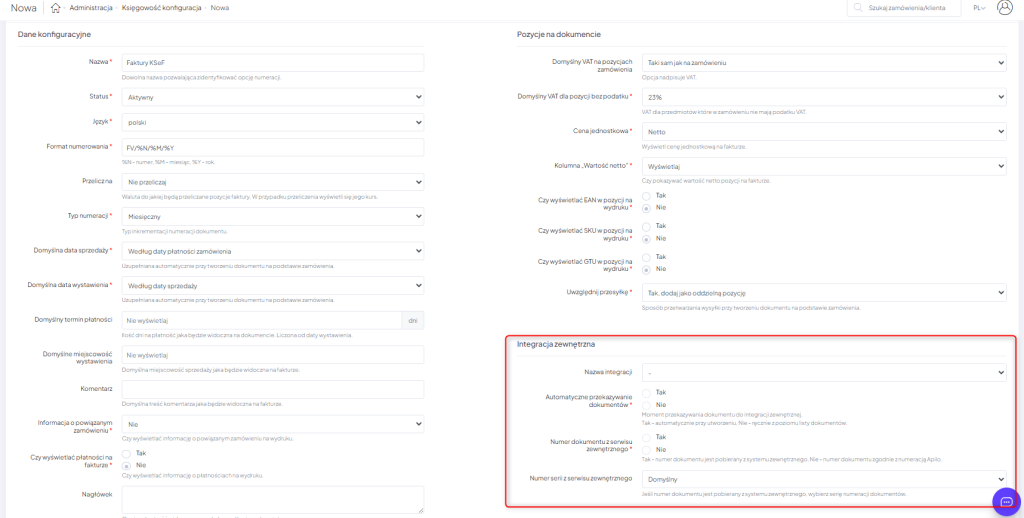
Creating a numbering series for integration with KSeF
- Go to the tabAdministration > Accounting configuration.
- Create a new numbering series by clicking the “new” button in the upper right corner.If you have not yet configured a numbering series, go to the guide https://apilo.com/pl/help/konfiguracja-modulu-fakturowania-paragonow/
- In external integration, select KSeF:

IMPORTANT!
Sending documents to KSeF can be doneautomatically immediately after generating the sales document or manually.
You can set the parameters for this process in the numbering series data in the tab: Administration > Accounting configuration > Edit the given numbering series:

If you are using manual export of sales documents to KSeF, go to the tab: Orders > Accounting documents. To send documents individually or in bulk, select them and choose the export option to KSeF. You can check the current status of the operation in the column:
 In the case of corrective invoices sent to KSeF, all settings are inherited from the invoice series (transmission settings, numbering, etc.).
In the list of accounting documents, each has an assigned status:
- Canceled – the document has been canceled;
- Issued – the document has been created, exported, or imported (applies to invoicing integrators) and has a correctly created PDF;
- Draft – the initial status that every newly created document receives;
- Error – most often occurs during the export to the integrator;
- Processing – document is in the process of being processed by the integrator;
- Waiting for PDF – the document has been successfully exported to the integrator / attempting to create or save the PDF document has failed;
- Deleted – the document has been deleted;
- Issued offline – if KSeF remains unavailable.
There is an option to download the accounting document regardless of its current status to an XML file. To do this, go to the section: Orders > Accounting documents, then select the document you are interested in and click: “XML”:

Additional fields in the numbering series related to integration with KSeF:
There is an option to select additional field settings in a given numbering series concerning integration with KSeF such as:
- Cash method;
- Reverse charge;
- Split payment mechanism;
- Exemption from VAT;
- BDO number;
- Transfer BDO number to KSeF;
- Transfer payment due date to KSeF;
- Transfer bank account number to KSeF;
- Local Government Unit (LGU);
- VAT Group Member (VAT).


In the case of exemption from VAT, it is necessary to indicate the basis for exemption from the available list:

This guide has been translated using AI-powered tools.
Still need help?
Talk to a support agent
