


Welcome to the Apilo Help Center.
Connection with inFakt
Contents
Add inFakt to Apilo
1. Go to Administration > Invoice Configuration. In the bottom part of the page, click on the tile inFakt. 2. Fill out and save the form: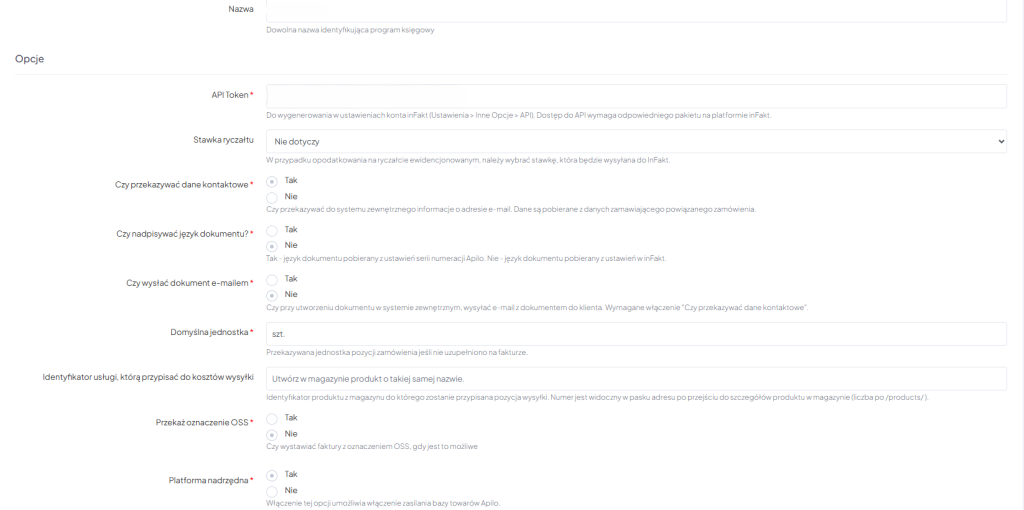
3. Generating the API key: In the Settings/Other Options/API tab, check the range of permissions for the key and click “Generate”:

Configuration necessary for issuing invoices.
1. Go to the Administration > Accounting Configuration tab.
2. Click the Start Configuration button, or add new by clicking the buttonAdd > Invoicein the top right corner.
3. Fill out the form:
- The data entered in the form in the Seller and Bank Account fields must match those provided in inFakt. Copy the data from Apilo from the inFakt panel;
-
- Fields: Company or department name, NIP number, contact details, Bank, Bank account, SWIFT – must match 1:1 in both systems;
- “Name (continued)” in Apilo should be left blank.
4. Complete the “External Integration” section by selecting in the window the integration name created earlier in inFakt.
Configuration necessary for issuing correction invoices.
1. Go to the Administration > Accounting configuration tab.
2. Add a new one by clicking the Add > Correction Invoice button in the upper right corner.
3. Fill out the form. In the series of correction invoice numbering, there is no option to add external integration – documents are issued in the Apilo invoicing module.
Issuing an invoice
Single issuance of a sales document (invoice):
- Go to Orders > Orders list. Select the order for which you want to generate an invoice.
- Click on the order number to go to the order card.
- In the upper right corner, click the button Document and select the numbering series established in the section “Invoice Configuration”.
- After issuing the document, you will see a preview. Click the button Print in the upper right corner, to download the final document to your computer.
Bulk, mass issuance of a sales document:
- Go to Administration > Automated Tasks.
- Open and fill in the form that specifies after which event the system should automatically generate a sales document. Below is an example of generating a document after changing the order status to Invoice.
- In the same automated task, you can set up the sending of invoices to buyers via email by adding another action to be performed.


Where to find issued documents
The list of issued documents can be found in the Orders > Accounting Documents tab.
Notes and limitations:
- Editing/Deleting/Canceling an invoice in Apilo will not save the modifications in inFakt;
- Editing/Deleting/Canceling an invoice in inFakt will not save the modifications in Apilo;
- inFakt does not offer invoice numbering selection;
- inFakt does not provide the ability to generate receipts.
This guide has been translated using AI-powered tools.
Still need help?
Talk to a support agent
