


Welcome to the Apilo Help Center.
Connection with Global24
Contents
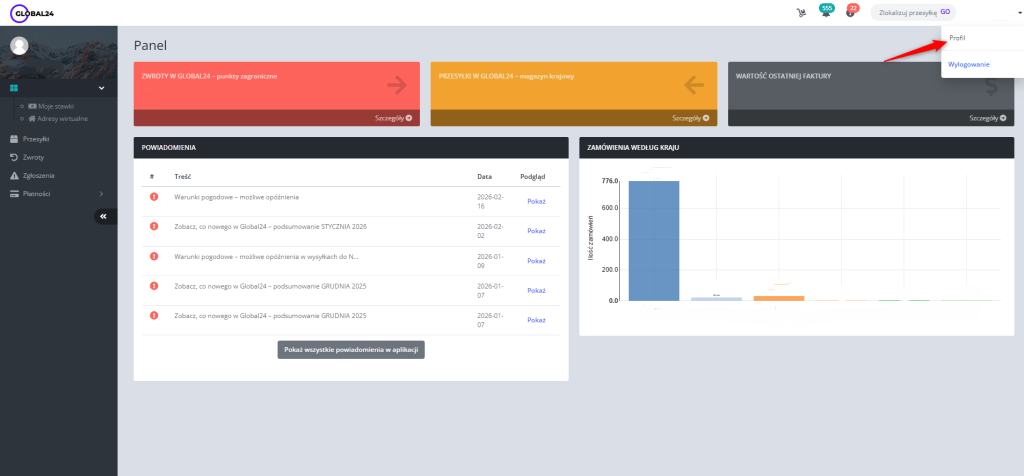
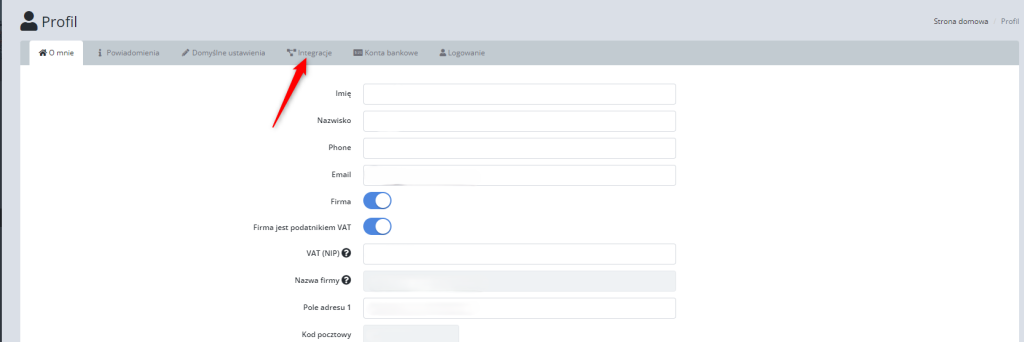
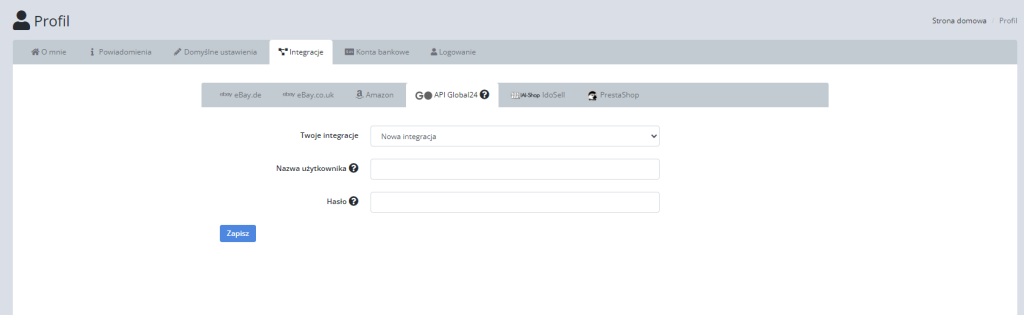
Adding integration in Global24.
- Log in to your Global24 account,
- Expand the menu in the upper right corner and select “profile”,

- Select the integration tab,

- Select Global24 API and provide a username and password that you will later enter in the Apilo form,

- Save the integration.
Adding integration in Apilo.
1. Log in to your Apilo account as an administrator.
2. Go to: Administration > Couriers and from the list of available couriers select Global24 by clicking the “Add” button.
3. Fill out the form:
- Name – any name by which you will identify the courier on the list;
- Sender’s address – sender’s address visible on the label;
- Login – username created for integration with Apilo in Global24
- API password – password created for integration with Apilo in Global24
- Account holder, Bank name, Bank account number, BIC/SWIFT code – this account will receive the collection amount;
- Label type – format of the generated label;
- Automatic entry for insurance value – check Yes if the field in Apilo is to be automatically filled with the order value.
Important! To add a courier, you must have an active account and a signed contract with the respective courier. Adding a courier in Apilo is an integration with the respective system and does not create an account with that courier.
Multiple shipping points:
If there are several courier integrations connected to Apilo, the system by default assigns the main sender address for all couriers. If you want to use multiple different shipping points, duplicate the existing address in the sender address edit field, and then edit the position of the copy:

You only need to add the address list once.
When adding a new / editing an existing integration, you can select the sender address used for it from the previously added addresses on the list:
This guide has been translated using AI-powered tools.
Najczęściej zadawane pytania
Still need help?
Talk to a support agent
