


Welcome to the Apilo Help Center.
Connection with Fakturownia.pl – invoices and receipts
Contents
Connecting the Fakturownia account to Apilo:
1. Go to Administration > Accounting configuration. At the bottom of the page, click on the Fakturownia tile.
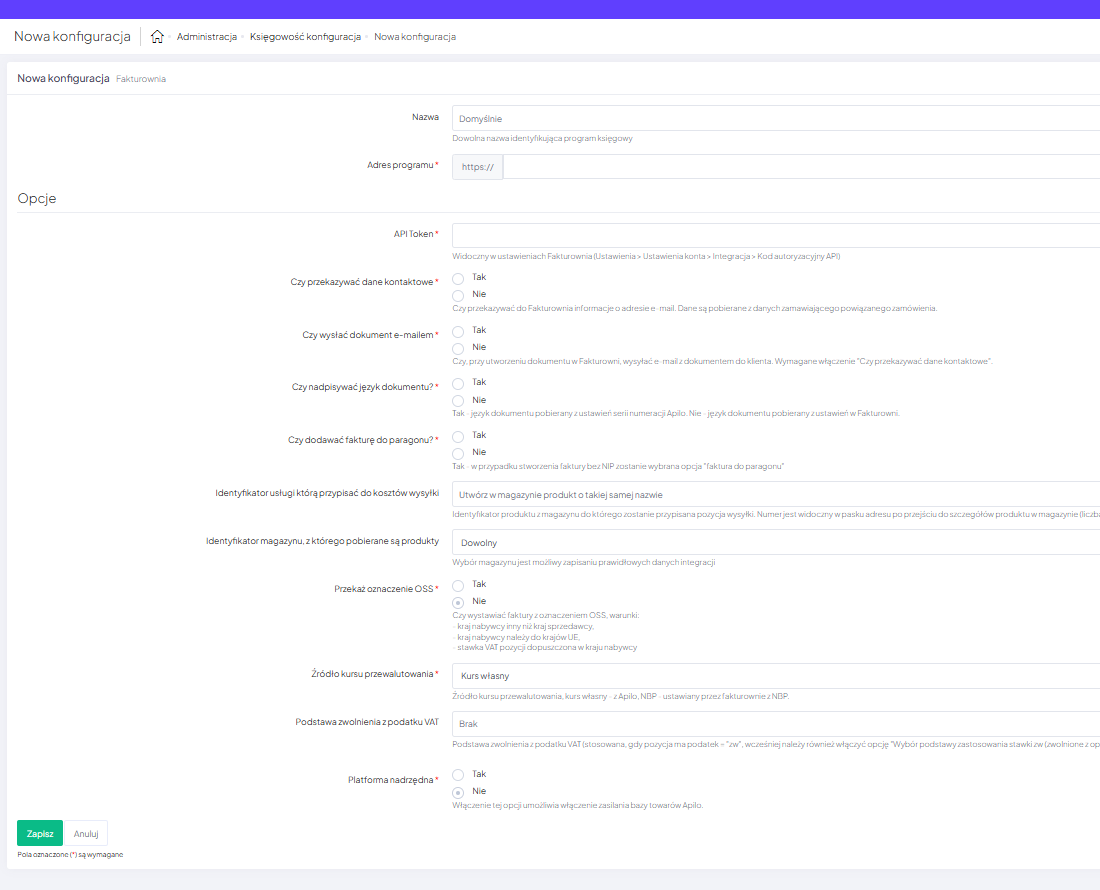
2. Fill in the form:
- name – any identifying name for the accounting program in Apilo;
- program address – subdomain used in Fakturownia (visible in the address bar after logging in);
- API token – visible in Fakturownia.pl settings (Settings > Account settings > Integration > API authorization code);
- Should contact details be provided – Should information about the email address be sent to Fakturownia? Data is retrieved from the data of the customer related to the order;
- should the document be sent by email – generating the document will trigger an email with the document to the client;
- Should the invoice be added to the receipt? – Yes, if an invoice is created without a NIP, the option “invoice to receipt” will be selected.
- Shipping cost service identifier – based on items on invoices in the Fakturownia.pl warehouse, stock items are created. This option will assign all shipping methods from orders to a single service in the Fakturownia warehouse. In the Fakturownia.pl panel, go to Warehouse > Products > Add new service identifying the shipping method or click on an existing one. Copy the ID visible in the address bar after /products/[ID];
- Warehouse identifier from which products are taken – The selection of the warehouse is possible after saving the correct integration data;
- OSS designation transfer – Should invoices be issued with the OSS designation, conditions: the buyer’s country is different from the seller’s country, the buyer’s country belongs to EU countries, VAT rate for items allowed in the buyer’s country;
- Source of exchange rate – Source of the exchange rate, in-house rate – from Apilo, NBP – set by Fakturownia using NBP;
- Main platform – enable if you manage product quantities and inventory on the Fakturownia panel side.
After clicking Save, Apilo will verify the entered data and inform you of the connection status. In case of an error, check the correctness of the data.
Configuration necessary for issuing invoices:
1. Go to the Administration > Accounting configuration tab.
2. Click the Start configuration button, oradd a new one by clicking the Add > Invoice button in the top right corner.
3. Fill out the form:
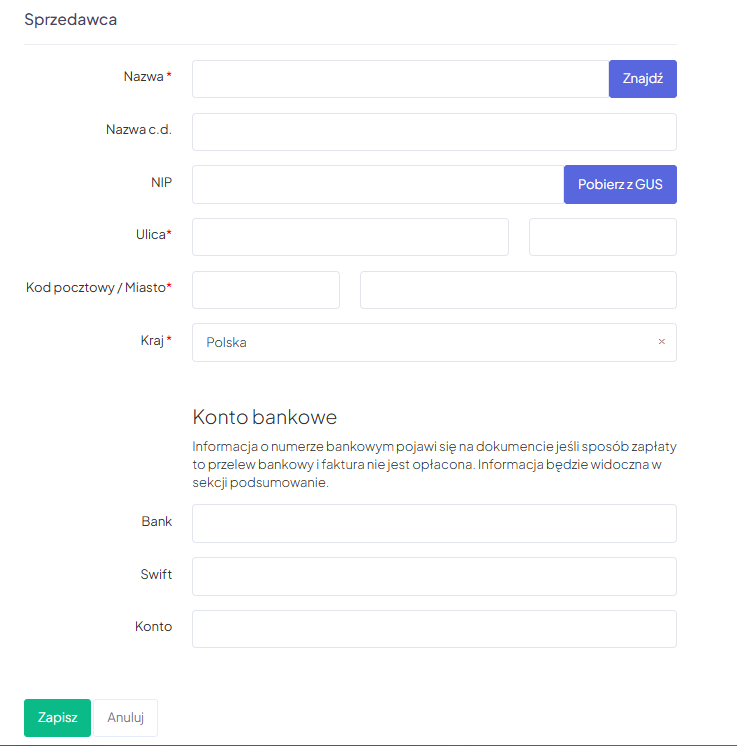
- The data entered in the form in the Seller and Bank Account fields must match those provided in Fakturownia. Copy the data to Apilo from the Fakturownia.pl panel from the Settings > Company Data > Edit tab;
- Fields: Company or department name, NIP number, contact details, Bank, Bank Account, SWIFT – must match 1:1 in both systems;
- The ‘Short Name’ in Fakturownia can contain any text;
- Leave the ‘Name continued’ in Apilo blank:
- Apilo Header -> is inserted into the Seller field > www in Fakturownia;
- Apilo Footer -> is inserted into Additional notes (printed at the bottom of the page) in Fakturownia;
- Comment -> Default text of the comment that will be visible on the invoice;
- Order number on the invoice -> To display the order number on the invoice, go to Fakturowni -> Settings -> Account Settings -> Prints -> and select the options:Insert order number:

4. Click the Save button, then use the Edit button to return to the form. In the bottom right corner, a section “External Integration” will appear with the options needed for further configuration:
- integration name – select the integration created earlier in Fakturowni;
- document number from the external service:
- yes: numbering from Apilo will be replaced by numbering from Fakturowni;
- no: Apilo will impose its own numbering;
- automatic document transmission:
- yes: invoices are transmitted to Fakturowni at the moment the invoice is created;
- no: invoices can be transmitted manually from the invoice list (after generating the invoice, go to Accounting > Invoices, select the chosen items and press the Export button;


Important: invoice numbering in Apilo can only be replaced by numbering from Fakturowni if the optionAutomatic invoice transmissionis set to Yes.
After saving the form for the series of numbering, you will be asked to select an additional option regarding KSeF.
- Wait for KSEF number – select Yes if you are sending invoices to KSEF and want the final, processed sales document to reach Apilo. No – the document will reach Apilo immediately after being created in Fakturowni, without KSEF designation;
OSS invoice configuration:
- In the Administration > Accounting tab, find the Fakturowni tile, click Details > Edit.
- Select the option “Give OSS setting” to YES.

Configure the series of OSS invoices according to the invoice scheme, and additionally in the position “Default VAT on order items” set “Use basic VAT rate according to the buyer’s country”:

Receipt Configuration:
1. Go to the Administration tab > Accounting configuration.
2. Click the Start Configuration button, or add a new one by clicking the Add > Receipt button in the upper right corner.
3. Fill out the form.
4. Complete the paragraph “External Integration” by selecting the integration name created previously in Fakturownia.
How to issue an invoice/receipt?
Single issuance of a sales document (invoice/receipt):
- Go to Orders > Order List – Select the order for which you want to generate an invoice;
- Click on the order number to go to the order card;
- In the upper right corner click the Documents button and select the numbering series set in the section “Invoice Configuration”;
- After issuing the document, you will see a preview. Click the Print button in the upper right corner, to download the final document to your computer.
Bulk, mass issuing of sales documents:
- Go to Administration > Automated Tasks;
- Open and fill out the form that specifies when the system should automatically generate a sales document. Below is an example of generating a document after changing the order status to “Invoice”;
- In the same automated task, you can set up the sending of invoices to buyers via email by adding another action to be performed:


List of issued documents:
- The list of issued documents can be found in the Orders > Accounting Documents tab.
- OSS invoices can be displayed by filtering the list by the country of the order.
Notes and limitations:
- Editing/Deleting/Cancelling an invoice in Apilo does not save modifications in Fakturownia;
- Editing/Deleting/Cancelling an invoice in Fakturownia does not save modifications in Apilo;
- The corrections to the invoice should be issued on the Apilo side, as well as on the Fakturownia side.
This guide has been translated using AI-powered tools.
Still need help?
Talk to a support agent
