


Welcome to the Apilo Help Center.
Billing / Receipt Module Configuration
Contents
Invoice Configuration
Before you start issuing invoices, you need to configure the data visible on the invoice. You can prepare several invoice templates tailored to individual sales channels – in different languages and currencies.
Go to the Administration menu > Accounting configuration and press the Start configuration. To add integration with KSeF, refer to the guide -> Connection with KSeF
Description of options available in the configuration form:
- Invoice:

- Receipt:

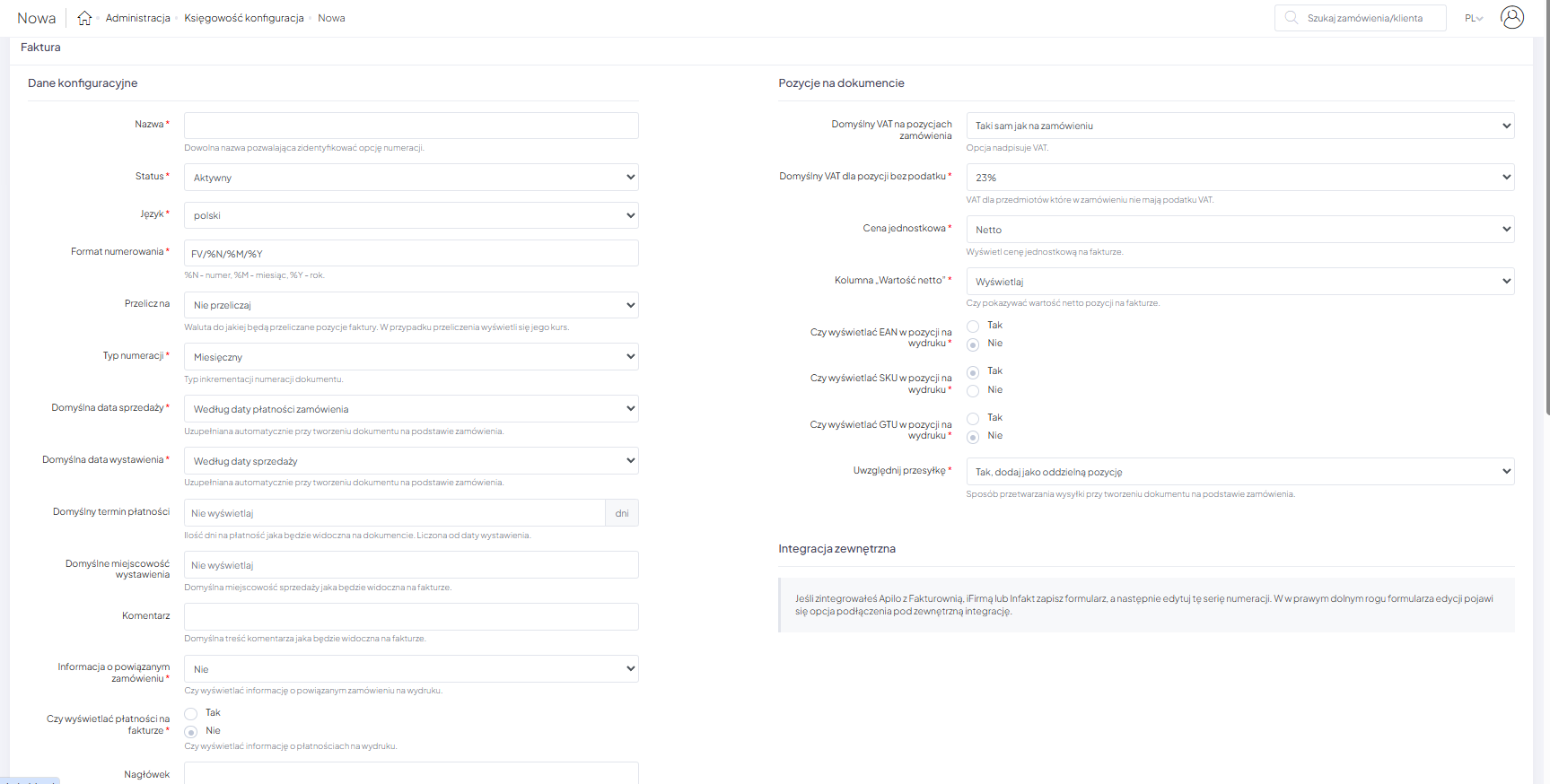
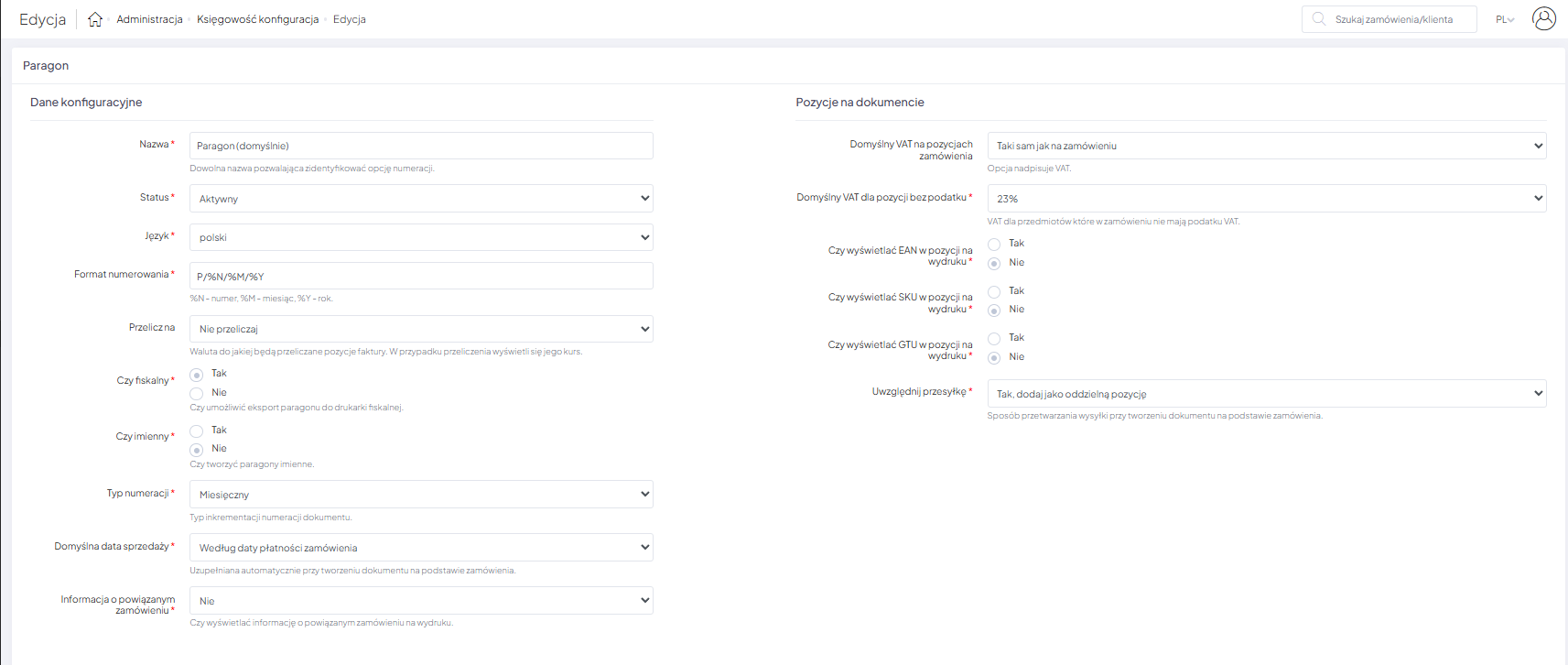
Important:
- If the form is saved and then edited, an additional option to change numbering will appear
- after issuing the first invoice in a given numbering, the fields “type”, “currency on the invoice” and “numbering type” cannot be changed
- changing other fields will not affect invoices that have already been created
- If you need to start the numbering from a specific number – report to BOK Apilo via chat or email
VAT Tax on Invoices. OSS Invoices
If you have selected a specific value in the field “Default VAT on order items”, the VAT tax indicated for the order items will be overwritten by this value.
If you have selected “Same as on the order“:
I) The invoice will show the tax provided by the sales channel
II) If the sales channel does not return VAT for the order items, the tax is taken from the product card in Goods and Services > Products. The auction must be linked to the inventory product via the Product Relations tab. For OSS invoices, the option “Use the basic VAT rate according to the buyer’s country (OSS)” should be selected. The tax rate will be calculated according to the country specified in the invoice.
Additional info: Most sales channels do not return VAT for order items. For example, for an Allegro auction, it is necessary to set VAT in the auction parameters. You can complete the VAT in the Apilo warehouse so that it loads correctly for both invoices and sales reports.
The option Add price proportionally hides the shipment on the invoice, while the shipping costs are included proportionally to the purchased goods.
Example No. 1: in the order there is an item for 4z + an item for 4z + shipment for 12z. If the option is enabled, the issued invoice will show two items: an item for 10z + an item for 10z.
Example No. 2: the order contains the following items: 3x item for 10pln/pcs. (total 30z) + shipment for 10z. The issued invoice will show the items: 2x item for 13.33z/pcs + 1x item for 13.34z/pcs.
Bank account on the invoice
You can place the bank account number for payment in the header, footer, or in the summary section on the invoice.
The account number in the Summary section will be visible if the following conditions are met:
- the Bank, Swift, and Account fields in the invoice configuration will be filled out
- the payment method chosen by the buyer is Bank Transfer
- the invoice is not paid
Sample layout of the invoice
The example below shows where individual elements available in the configuration form are placed: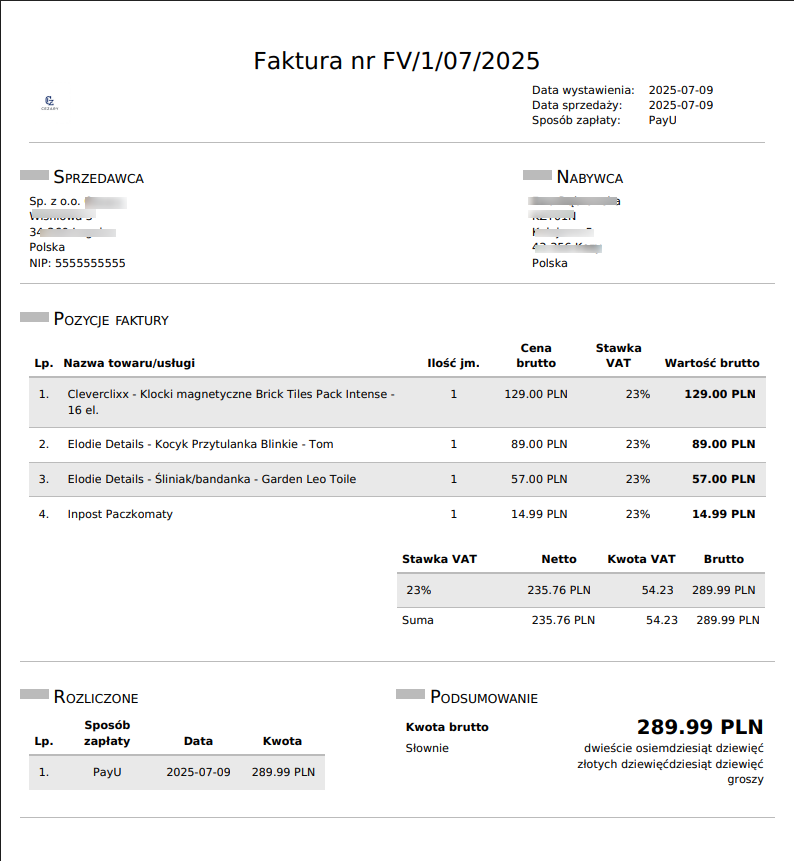
Manual issuance of a single sales document for an order
1. Go to the order details by clicking on the order number in the Orders tab > Orders List
2. In the top right corner, click the “Document” button and choose the previously established numbering/model from the Accounting Configuration tab. 3. On the next screen, a simplified summary will appear. You can download the ready invoice in accordance with the established model by clicking the Print button in the top right corner.
Automatic issuance and sending of invoices:
Apilo can automatically generate and send the invoice to the buyer. To achieve this, use the automated tasks module:
1. Go to Administration >Automated Tasks
2. Add a new automated task
3. In the section, select the “event” and the “conditions” after which the system will issue and send the invoice
4. In the sectionPerform Actionadd 2 actions:
- Action No. 1: Sales Document + Numbering Series
- Action No. 2: Send email + Invoice message template for the order {orderId}. The message content can be changed in the Message Templates

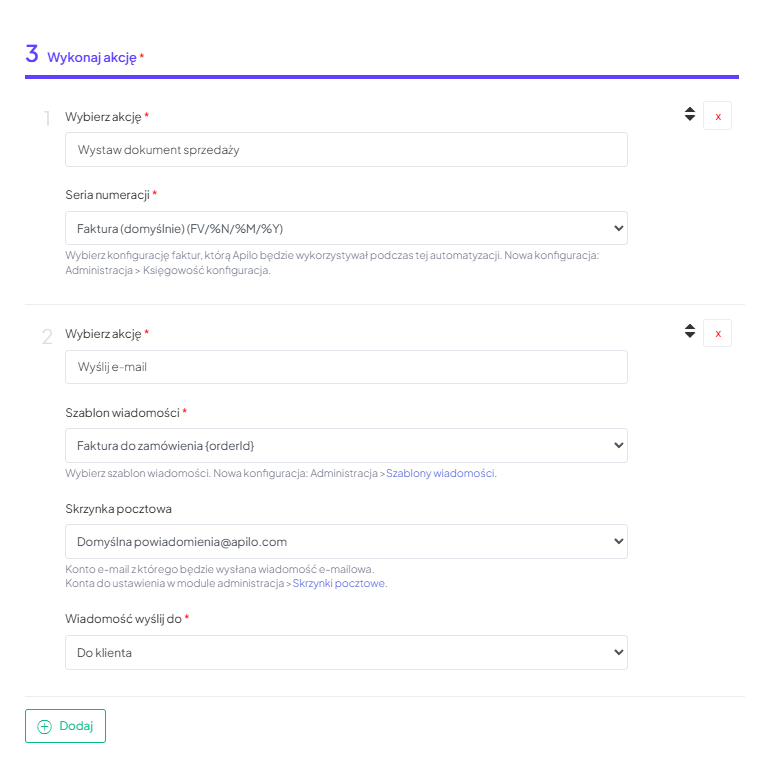
More information regarding automatic invoice generation can be found in the guide Automated Tasks.
Issuance of a document not linked to an order
1. Go to the Orders tab > Accounting Documents
2. Click the button+Invoicein the top right corner
3. Fill in the form:
- the button “find” – retrieve buyer data from the orders
- the button “get from GUS” – retrieve buyer data based on NIP
- use the magnifying glass icon or enter the name/SKU/EAN in the name of the product/service, to search for a product from the product database
Important: an issued invoice without relation to an order will not deduct the inventory of the products included on the invoice.
Issuing a document correction
1. Go to the Orders tab > Accounting documents
2. Find the document you want to correct and go to the details
3. Click the “Correcting Invoice” button in the top right corner and select the type
4. Fill out the form:
- to edit an invoice item, click the checkbox
- make changes to at least 1 item
- if you want to cancel the sale of the selected item – change the quantity to 0
Invoice in the Client Center
The client center is a panel with detailed information about the order, which the client can access using the variable “Link to the client area” in message templates. To enable access to the invoice from the client center level:
1. Go to the General Settings Apilo tab
2. Click the Edit button at Orders
3. Set YES for “Client area: display link to download invoice”
4. When configuring automated message templates, use the variable “Link to the client area”
From now on, buyers accessing the center/client area through the link from the message will see a link to download the invoice among the order information.
Where are the issued invoices located?
1. Information about the issued invoice is visible in the order details under the Related Documents tab. 2. Another place where you can view issued invoices is the Orders > Accounting Documents tab.
Downloading invoices for printing
1. Go to the Orders > Accounting Documents tab
2. Select the invoices you want to print
3. Click the buttonDownload and choose one of the 2 options:
- PDF – all invoices in one PDF file
- ZIP – archive with invoices, 1 pdf file = 1 invoice
Invoice Summaries
Thanks to Apilo, you can easily generate an invoice summary for any period to pass on to accounting. The file contains information such as invoice number, date, buyer’s details, net/gross amount, currency, and exchange rate.
1. Go to the Orders > Accounting Documents tab
2. Select the invoices you want to summarize. For OSS invoices, filter the document list by the country of the order
3. Click the Sales Register button and select any type
Automatically importing invoices to orders in the marketplace
Automate the sending of invoices to buyers’ orders from Amazon, Allegro, etc. (for channels that provide this functionality) by enabling the automatic invoice import option to the panel:
1. Administration > Sales Channels
2. Click on the name of the sales channel
3. Scroll to the bottom of the page to the Export settings section, find the Invoices to sales channel option and click the Change button
4. Fill out and save the form
This guide has been translated using AI-powered tools.
Still need help?
Talk to a support agent
