


Welcome to the Apilo Help Center.
Autoresponder messages from Allegro buyers
Contents
The autoresponder automatically sends replies to messages from Allegro buyers. Among the options are:
- reply to a message from the buyer
- reply to a message from the buyer in the Discussion
- different response content depending on the Allegro account
- different response content during working hours and after hours
Important!If you connected your Allegro account before 07.07.2023, you will have to reauthorize your Allegro account – otherwise, the autoresponder will not be able to operate.
1. Log out of your Allegro account in the browser.
2. Go to Administration -> Sales Channels -> click on the account name Allegro -> click the button Authorization.
Attention! If you have connected multiple Allegro accounts – each one must be reauthorized separately, first logging out of Allegro in the browser.
How to enable the Autoresponder?
1. In the Apilo panel, go to the Administration tab > Automated Tasks.
2. Click the button +Add in the upper right corner of the page.
3. The options available in the form include:
- Event: Receiving a message;
- Condition:
- source / Sales Channel. If you have several Allegro accounts, you can create automated tasks with individual content for each of the accounts. To have one task send a reply for all channels, check them or leave the setting “Any”;
- Contact Type – set the type for which the reply should be sent:
a) Message (message center);
b) Discussion. If you want to set different responses for discussions and messages, it will be necessary to create 2 automated tasks. You can also choose both types – the same reply will be sent.
- Perform action: Send a message;
- Reply – set when the automatic response should be sent. You can choose:
- During the specified hours;
- Outside of the specified hours;
- Always.
You will set the hours using the button „Set hours”:
- Response delay – the time is counted from the moment the message is sent by the buyer;
- Message content – you can use variables, e.g. „Thank you for your message. We work from Mon to Fri from {configWorkDays}. We will respond as soon as possible.”
Examples of Autoresponder usage:
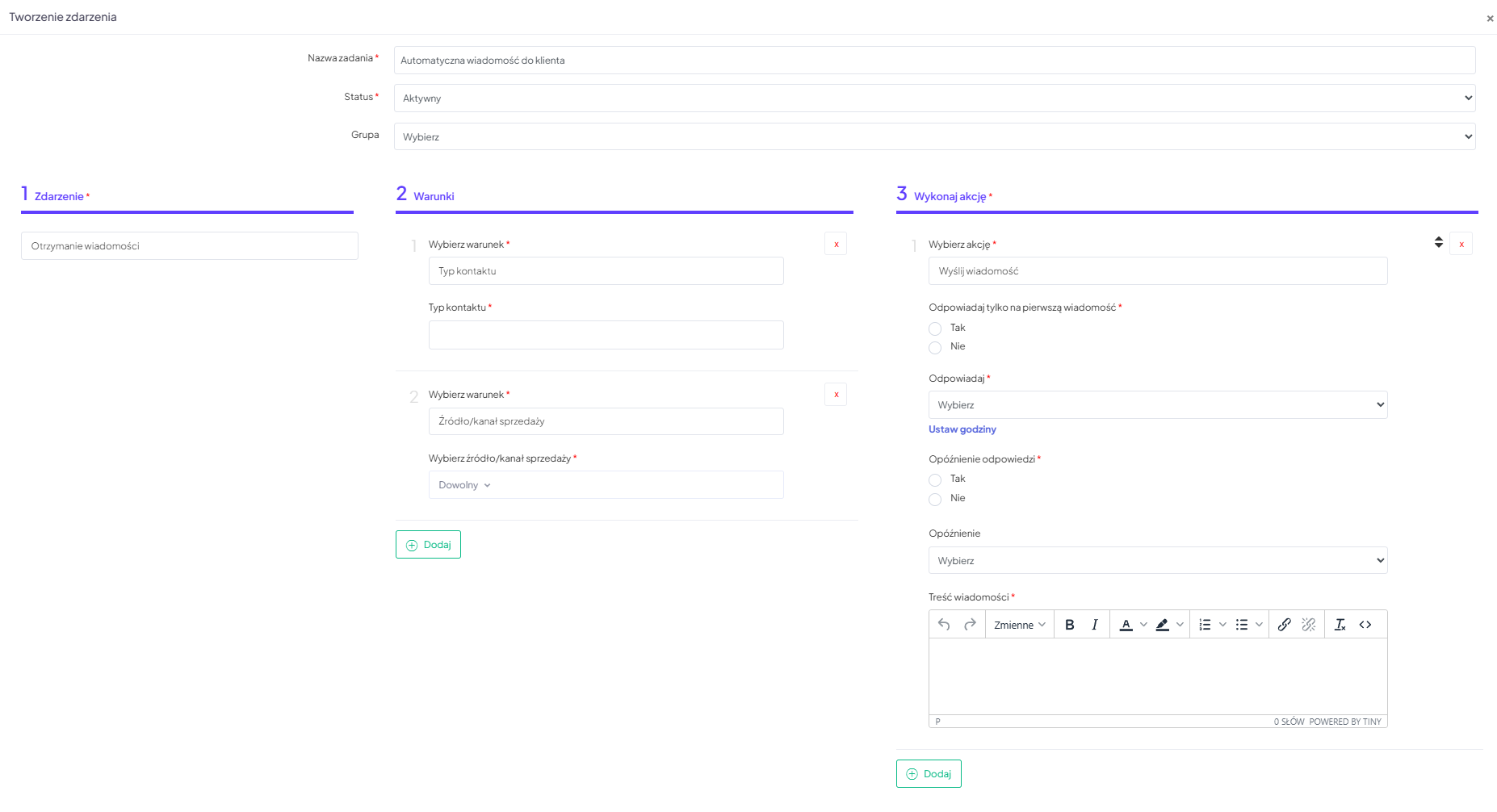
I. Automatic reply to messages in the Allegro message center during working hours:
- Event – Receiving a message;
- Conditions:
- Source/sales channel – any Allegro account;
- Contact type – Message.
- Perform actions:
- Reply only to the first message – Yes/No – set according to needs;
- Reply – During the specified hours;
- Response delay – set Yes, when the reply is to be sent with a delay;
- Delay – set after how long the reply is to be sent.
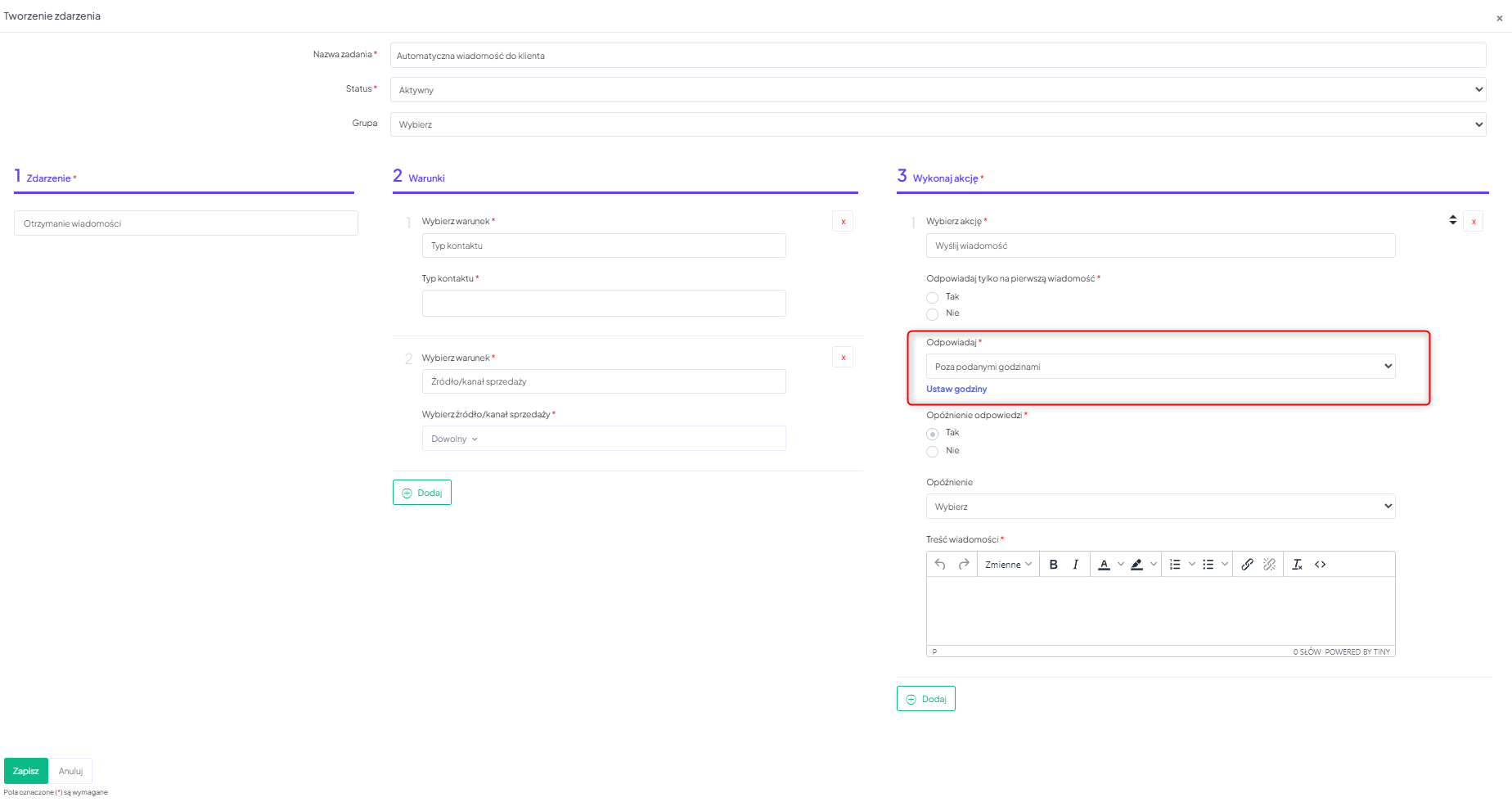
II. Automatic reply to messages in the Allegro message center after working hours
- Event – Receiving a message;
- Conditions:
- Source/sales channel – any Allegro account;
- Contact type – Message.
- Perform actions:
- Reply only to the first message – Yes/No – set according to needs;
- Reply – Outside of the specified hours;
- Response delay – set Yes, when the reply is to be sent with a delay;
- Delay – set after how long the reply is to be sent.

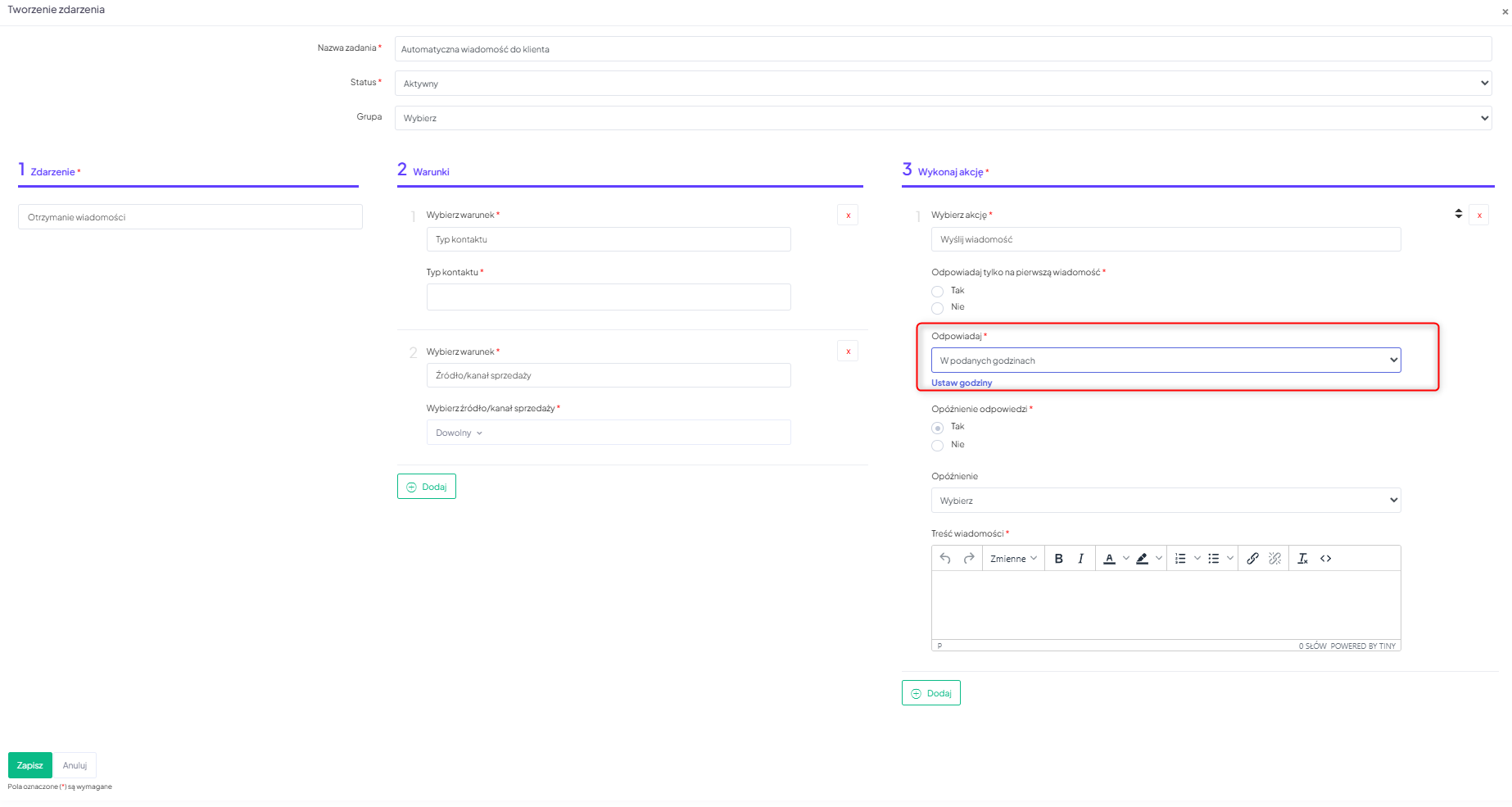
III. Automatic reply to messages in Allegro discussions during working hours.
- Event – Receiving a message.
- Conditions:
- Source/sales channel – any Allegro account;
- Contact type – Discussion.
- Perform actions:
- Reply only to the first message – Yes/No – set according to needs;
- Reply – During the specified hours;
- Response delay – set Yes, when the reply is to be sent with a delay;
- Delay – set after how much time the response should be sent.
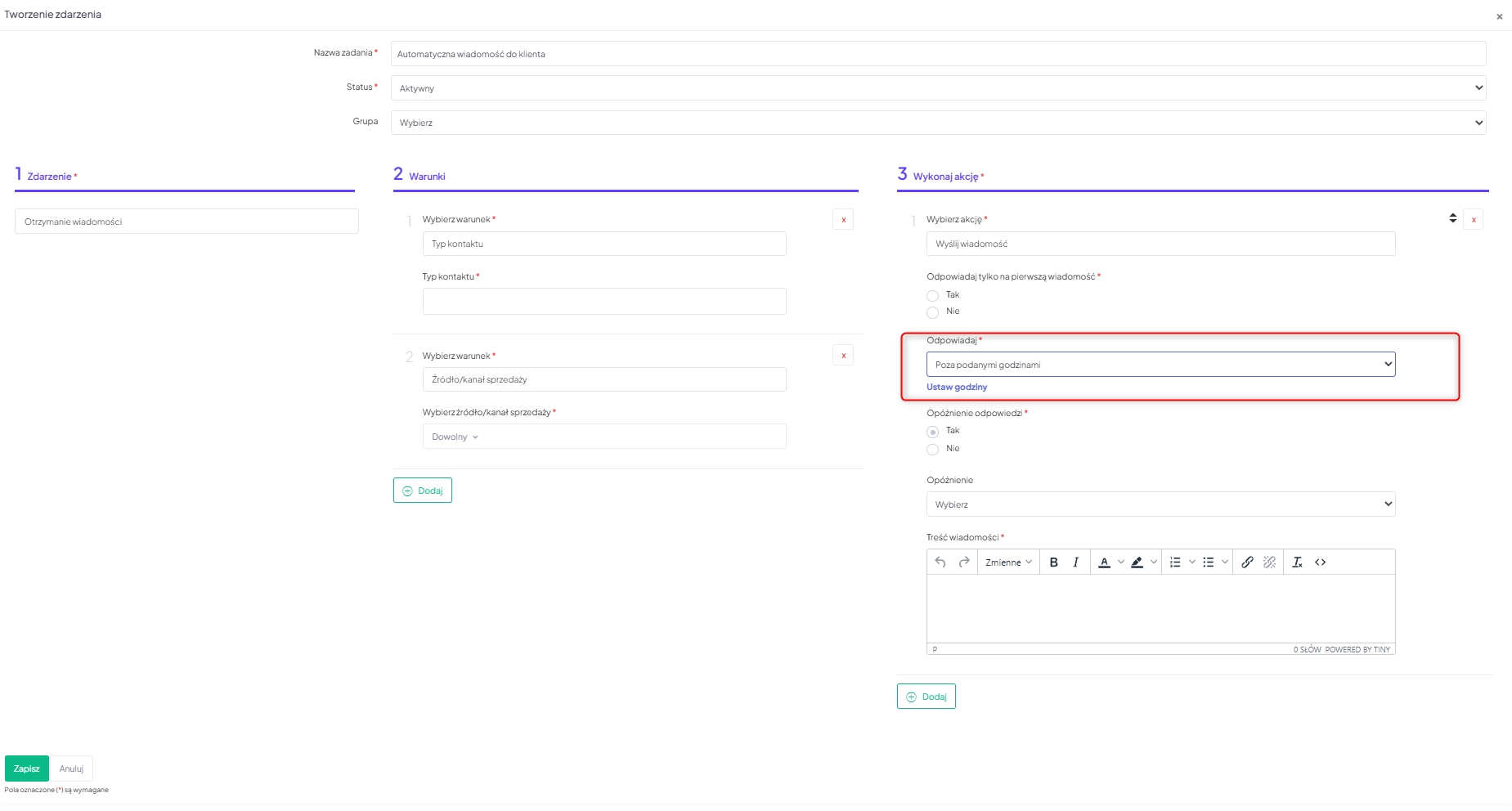
IV. Automatic response to a message in Allegro discussions after working hours.
- Event – Receiving a message.
- Conditions:
- source/channel of sale – any Allegro account;
- Type of contact – Discussion.
- Perform action:
- Respond only to the first message – Yes/No – set according to needs;
- Respond – Outside specified hours;
- Response delay – set Yes, when the response is to be sent with a delay;
- Delay – set after how much time the response should be sent.
This guide has been translated using AI-powered tools.
Still need help?
Talk to a support agent
