


Welcome to the Apilo Help Center.
Allegro – payment and commission refunds
Introduction
From this guide, you will learn how to process a refund and how to submit a commission request for orders from Allegro.
Table of contents:
1. Mass refund from the order list
You can process refunds for orders canceled by buyers on Allegro from the order list. To do this, go to the tab Orders – order list, and then select the status group in which the orders you want to refund are located.
- Select the orders from the list for which you want to process a refund
- Click on Operations -> Allegro – refund payment

- Choose the reason for the refund.
- Select whether you want to refund the shipping costs

- Click Save
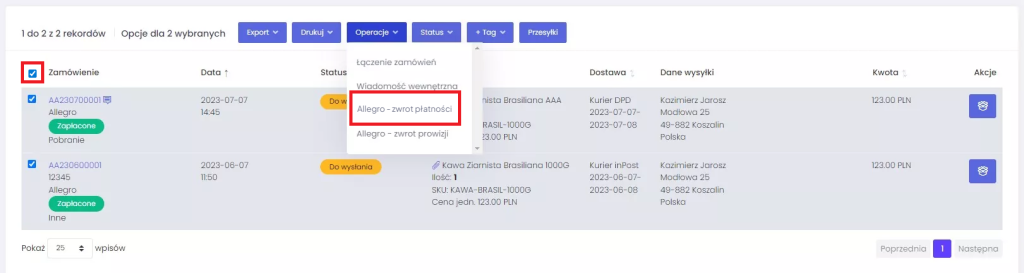
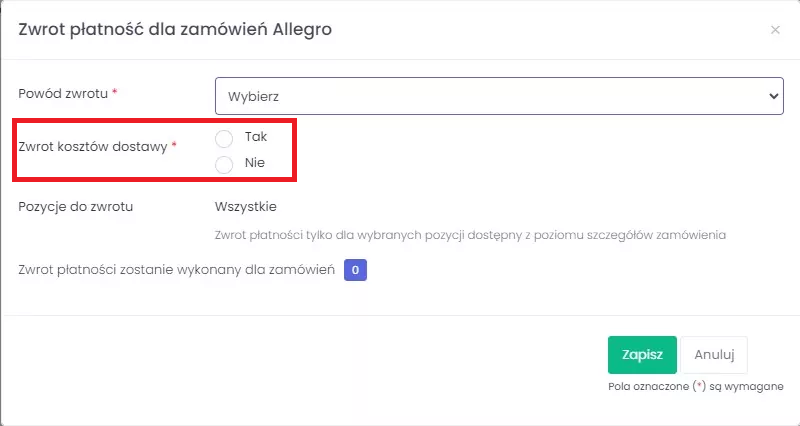
Important! Refunds processed from the order list generate refunds for all ordered items. If you want to process a refund for part of the order – check point 2. of the guide.
You can check the status of the payment refund in the details of the order in the tab Payments. In the case of a request rejection by Allegro, the appeal should be submitted in the Allegro panel.

2. Refund for selected items from the order
You can process a refund for a selected item from the Allegro order after going to the details of the order. To do this, go to the tab Orders – order list, and then click on the number of the selected order:
- Click on Allegro -> Refund payment

- Choose the reason for the refund.
- Indicate whether the delivery cost should be refunded.
- Select which products you want to returnpayment:

- Save the form.

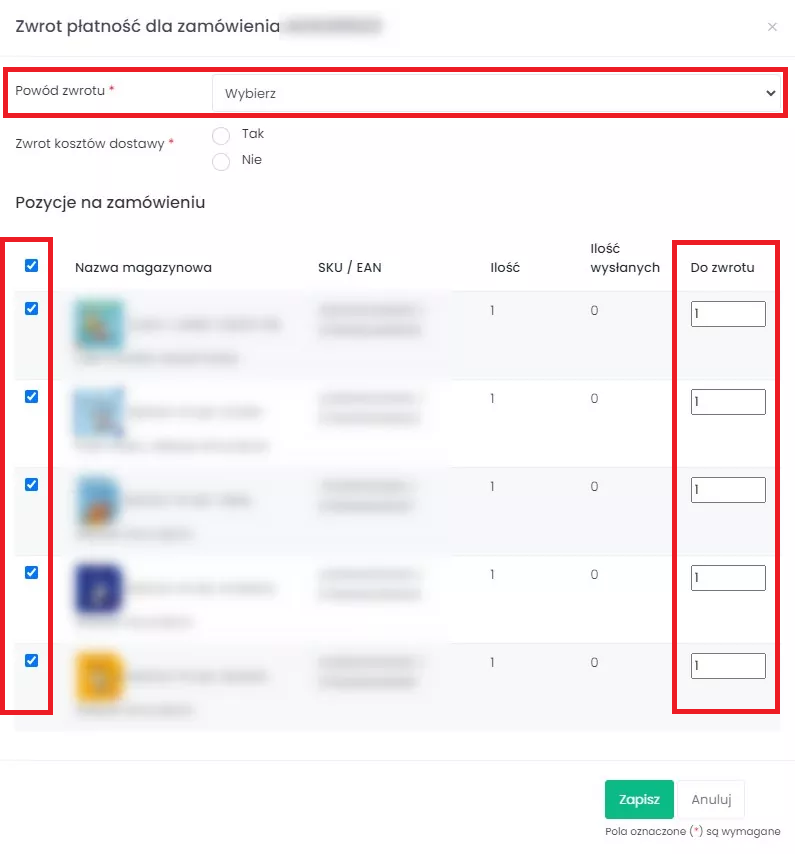
You can check the payment refund status in the order details under the tab Payments. In case of rejection of the application by Allegro, the appeal must be submitted in the Allegro panel.

3. Mass refund of commissions from the orders list level
You can perform a mass refund of commissions for orders canceled by buyers on Allegro from the orders list level. To do this, go to the tab Orders – orders list, and then select the status group containing the orders for which you want to process the commission refund:
- Select from the orders list for which you want to perform a commission refund
- Click on Operations -> Allegro – commission refund

- Save the form – refund applications will be sent to Allegro.

Important!Submitting a commission refund application from the orders list covers the entire order. If you want to submit an application only for a part of the products, go to point 4. of the guide.
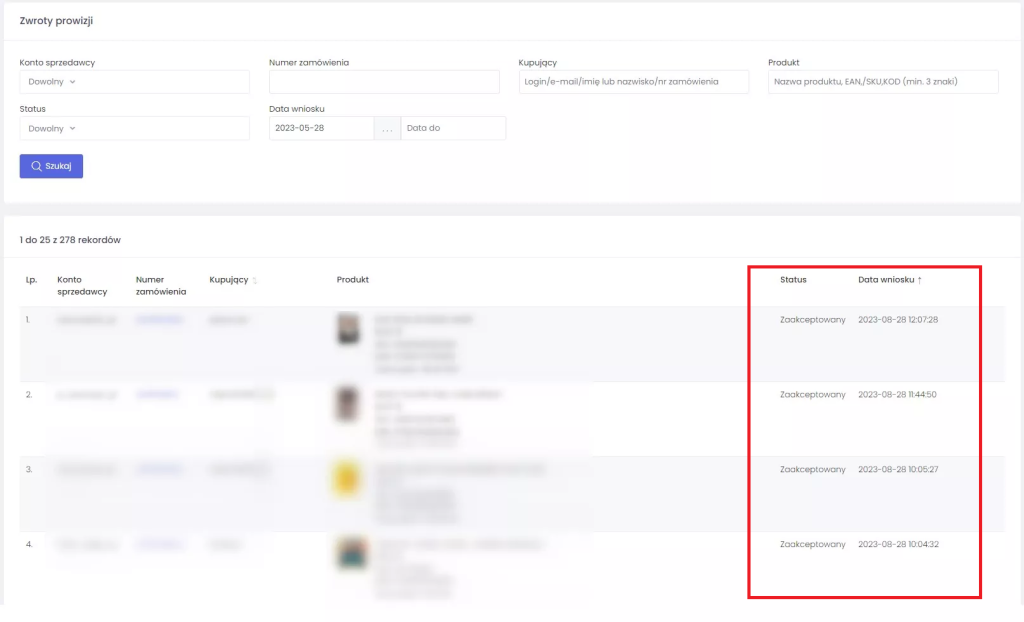
Check the status of the commission refund application in the tab Sales -> Allegro -> Commission Refunds. In case of rejection of the application, the appeal must be submitted in the Allegro panel.
4. Commission refund for selected items from the order
You can submit an application for a refund of the commission for some items after going to the order details. To do this, go to the tab Orders – orders list, and then click on the number of the selected order:
- Click on Allegro -> Commission Refund

- Choose the products for which you want to submit a commission refund application

- Save the form.

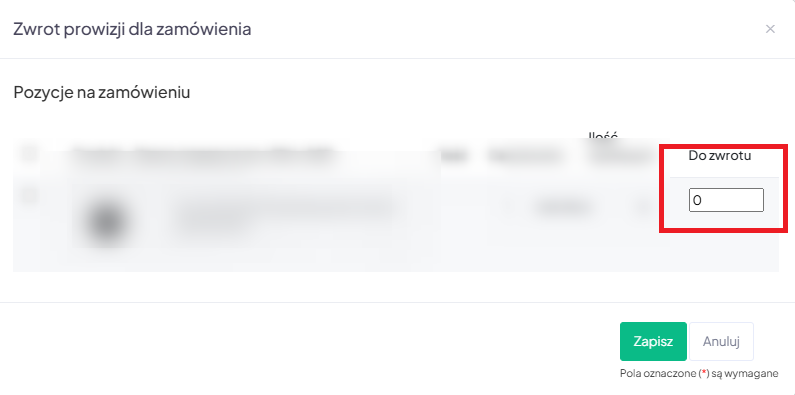
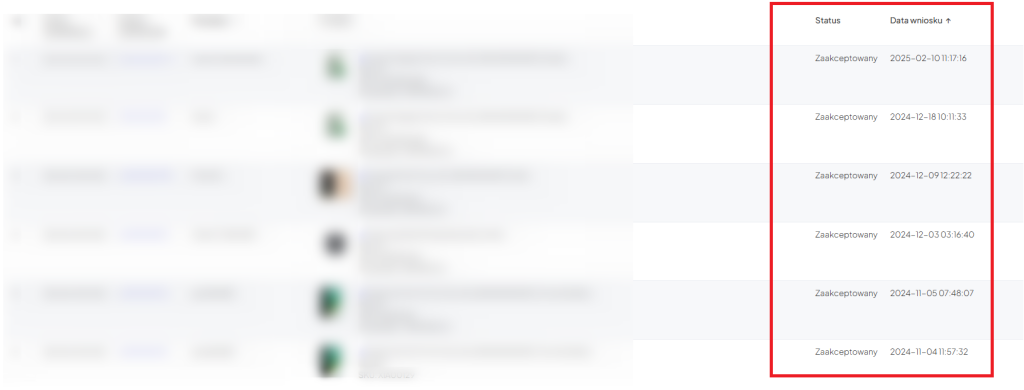
You can check the status of the commission refund application in the tab Sales -> Allegro -> Commission Refunds. In case of rejection of the application, the appeal must be submitted in the Allegro panel.
This guide has been translated using AI-powered tools.
Still need help?
Talk to a support agent
