


Welcome to the Apilo Help Center.
Allegro – additional configuration
Contents
Creating Auction Templates
This facilitates defining your own layout scheme for auction elements and adding recurring information in auctions (e.g., manufacturer description).
Go to the Administration tab -> Sales Channels -> Allegro – Configuration -> Auction Templates -> Click the button in the upper right corner +New Template.Images in Templates: The image added to the template will be loaded in the Allegro auction listing form (e.g., manufacturer logo).
Add a few empty tiles with an image icon, so that images from the product card will load in those places. Excess tiles will be skipped if the product does not have that many images.

“Variables” Button Is used to load data from the product card into the template, e.g., title, ean, product description.Example: In Goods and Services > Products, you have added a product with a description. Using the “Variables” button, you can set the loading of the description in a specific place in the template when listing the auction.Important! The description will be loaded in its entirety in the field where the “Product Description” variable is used. If you want to break it into several fields – do so manually when listing the offer.
Most commonly used categories
Selecting categories in which you most often list offers will allow for faster and easier searching for them in the auction listing form.
- Go to the Administration tab -> Sales Channels -> Allegro – Configuration -> Categories.
- Select the most commonly used categories:

Automation for Allegro Orders
The automatic tasks module will allow you to set an automatic status change for an order or send an email to the customer right after purchase or generating a label.
In the Administration tab -> Automatic Tasks, you can also use ready-made templates for automatic tasks. Just fill in the empty fields according to your own needs: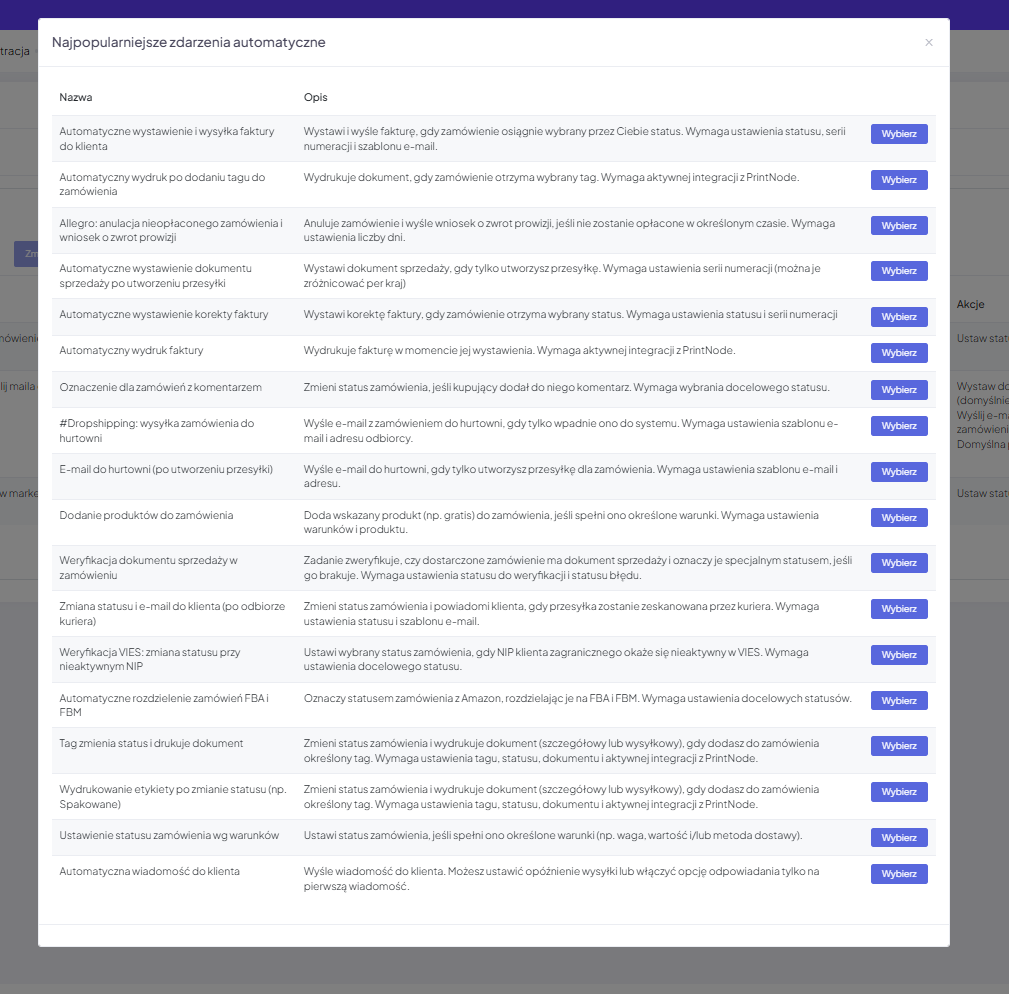
Are you interested in a more advanced configuration? Be sure to check this guide.
Cancelled orders on Allegro
If a customer cancels an Allegro order, a notification will appear in Apilo, visible on the order list, in the order details, and in the label generation form:

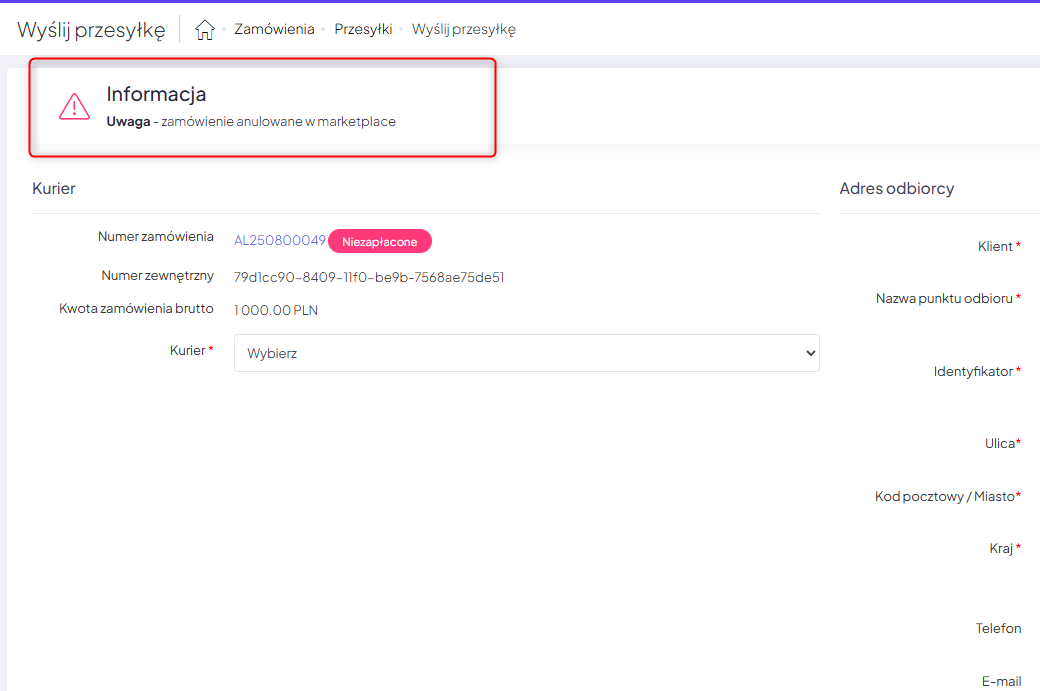
In the “Automatic Tasks” tab, you will find the task responsible for changing the status of orders that the customer has cancelled on Allegro.
By default, orders will receive the status “Cancelled” automatically if they are still in the “New” status group and no changes have been made to them. Other orders (which have begun processing) will have a visible cancellation information from the customer, their status, however, will not change.
If you want the remaining orders to also change their status or need a different modification, go to the “Automatic Tasks” tab and edit the task with the event ‘Cancelling an order in the marketplace (Allegro)’: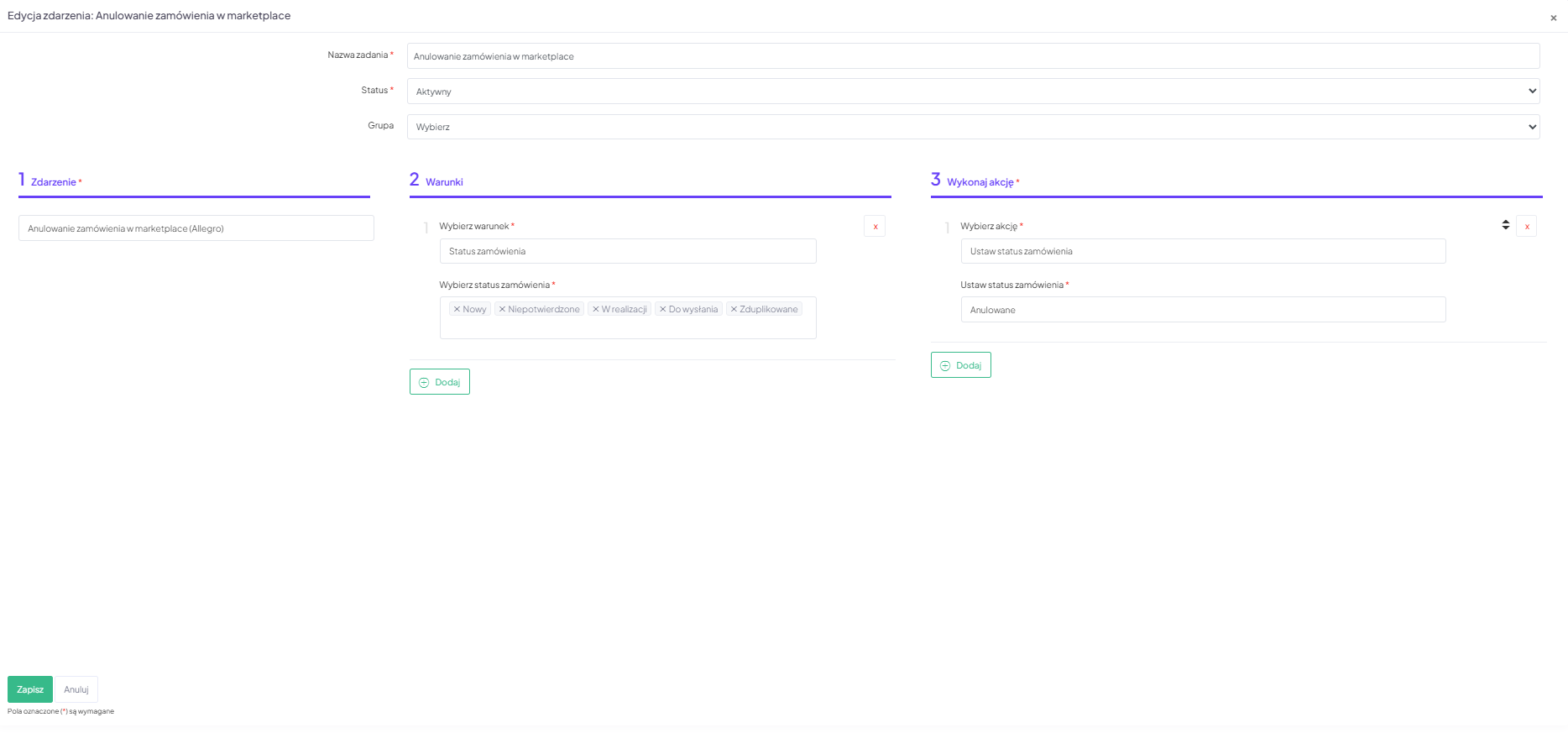
Individual prices
If you want to sell on Allegro at different prices than those in stock or you have several Allegro accounts and want the same products to have different prices, you can set rules using price lists that will automatically calculate them.
- Go to the tab Goods and services > Price lists.
- Click the button in the upper right corner Settings.
- Click the button in the upper right corner +Add.
- Complete and save the form.
Important! We recommend adding as many price lists as you have sales channels. Set names that will be consistent with the names of sales channels, making it easy to identify the appropriate price list.
 To create a pricing rule, follow the steps below:
- Go to Goods and services > Price lists.
- In the upper right corner, select the button Settings.
- In the field Pricing rules click +Add.
- Fill out the form, set the rules according to which prices will be calculated, and save.
After saving the form, new prices will be calculated after the specified time shown on the screen:

You can find detailed information about the pricing module in this guide.
Shipping connections
With the described configuration, you will assign the connected carrier in Apilo to the delivery forms selected by buyers. After the configuration:
- the information about which carrier was chosen by the buyer will appear on the order list,
- a filter ‘Delivery’ will appear on the order list, allowing to filter orders with a specific carrier,
- the shipping method will be filled automatically in the form,
- you will unlock the possibility of a bulk form for generating labels for multiple orders at once Orders > Orders list > Button Shipments.
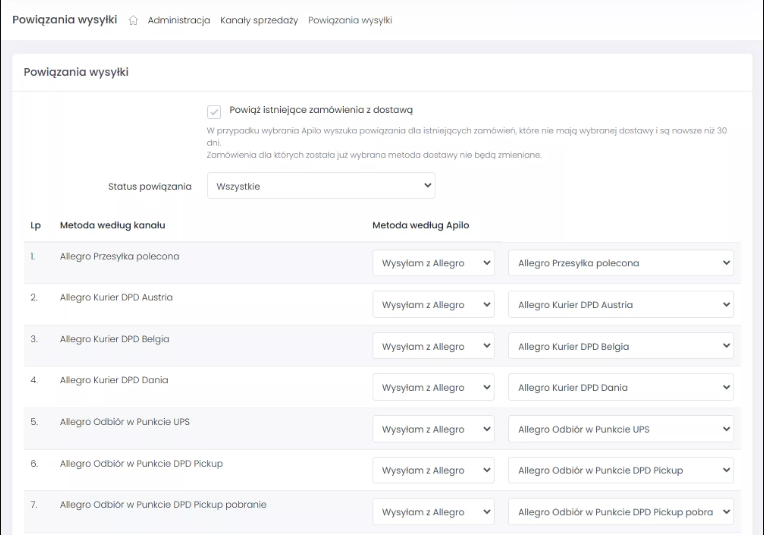
Apilo simplifies managing orders from Allegro. You can order a courier pickup directly in Apilo, without the need to go to the Allegro panel. Information about the pickup order will be automatically sent to Allegro.
To order a courier pickup for generated shipments:
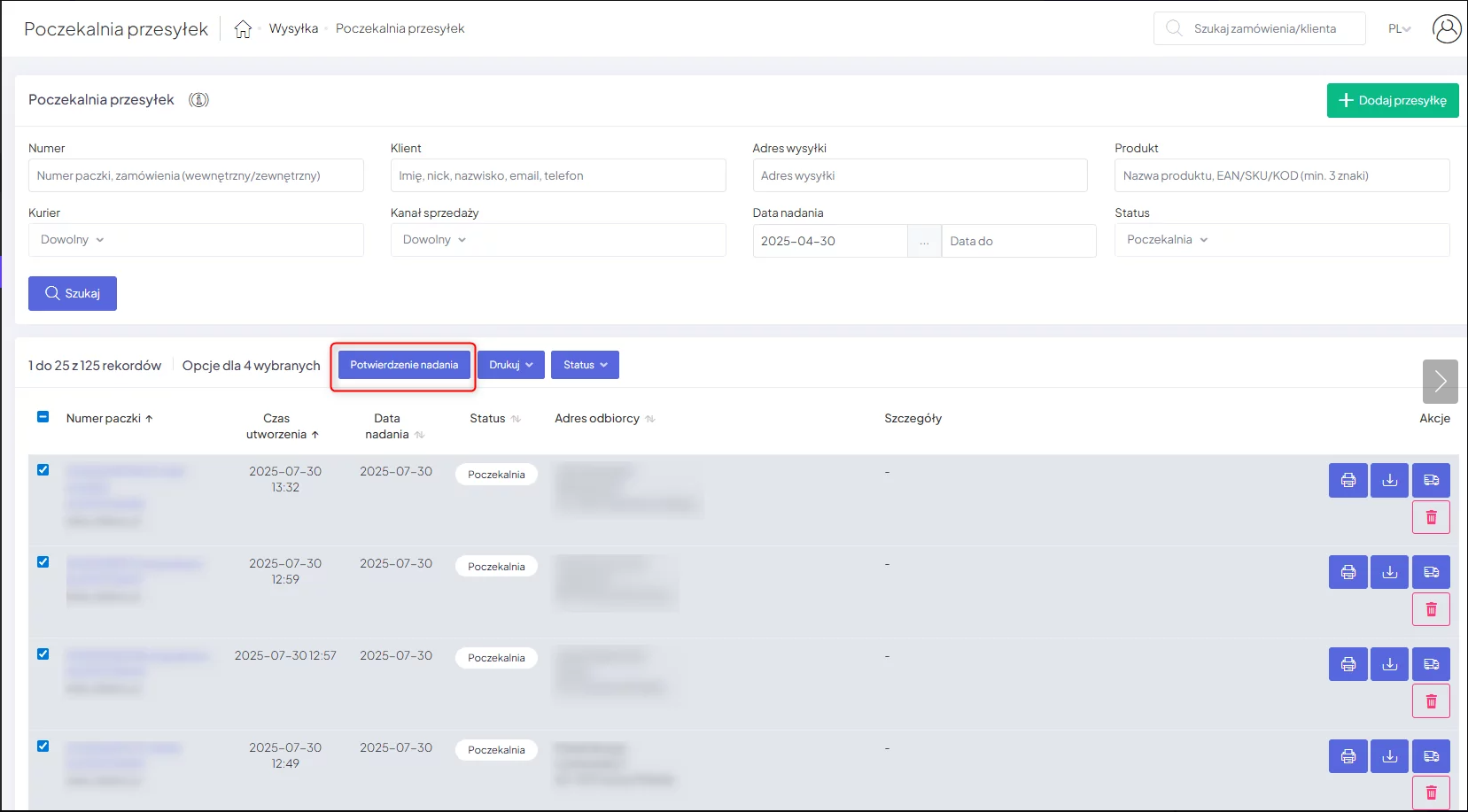
- go to the Orders tab > Shipment Waiting;
- select the shipments for which you want to schedule a courier pickup and click “Confirm shipment”:

- a window will appear with the courier availability options:

- after clicking the “Save” button, the courier pickup has been scheduled. This information will be visible in the Allegro panelAdditional information:
- For Polish Post and Packety shipments, you cannot order a pickup through Send from Allegro;
- All couriers from Send from Allegrooffer a courier pickup;
- InPost and ORLEN Paczka do not offer a choice of courier pickup times.

This guide has been translated using AI-powered tools.
Still need help?
Talk to a support agent
